How to Read a Teleprompter Naturally on Camera: The Complete Studio Guide
Master the art of natural teleprompter delivery. Learn how camera distance, focal length, text column width, and remote pacing eliminate darting eyes and robotic cadence.
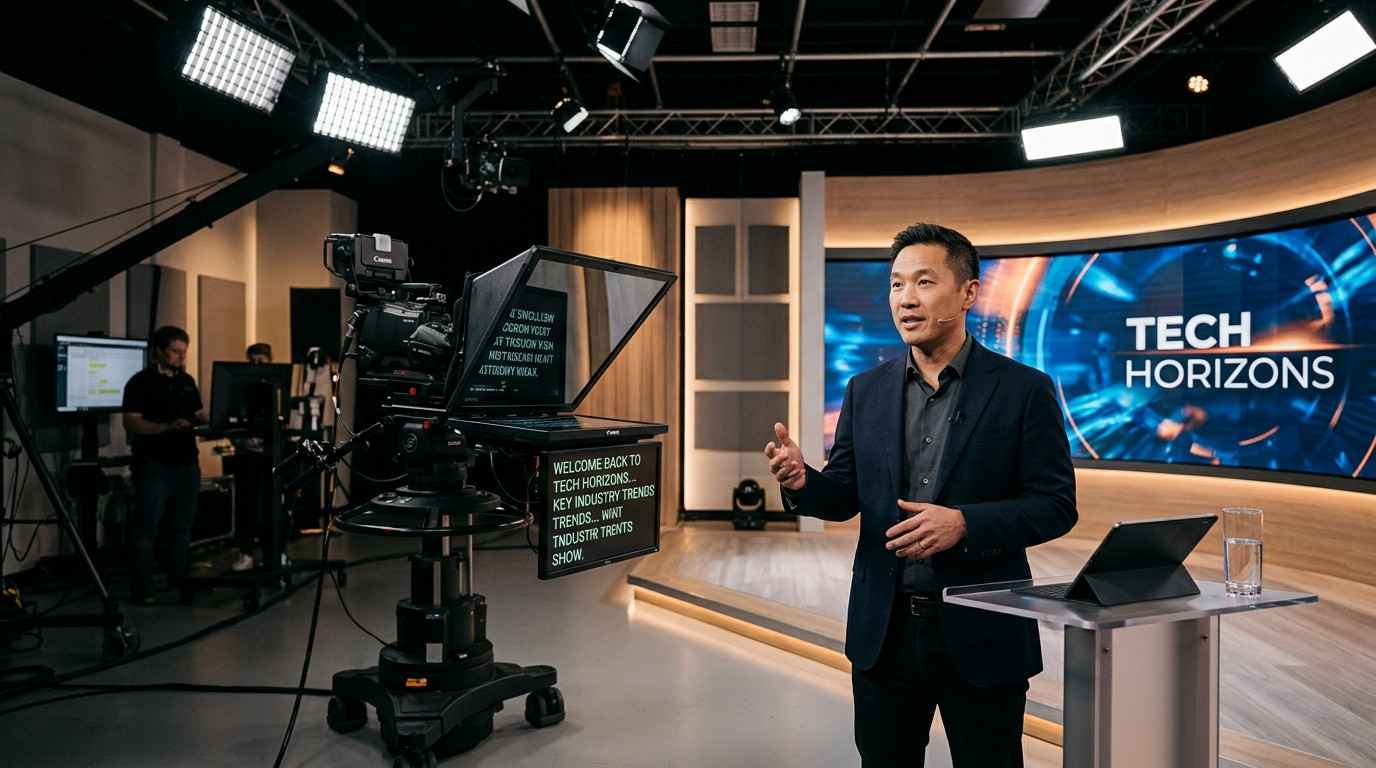
When audiences watch a presenter on camera, they instinctively detect tiny visual cues. The subtle left-to-right flicker of darting pupils, a stiff neck, or a monotone cadence immediately signals that the speaker is reading words off glass rather than having a genuine conversation. Even seasoned executives and confident creators can look tense the moment text starts scrolling in front of the lens.
Getting a clean, relaxed take on a teleprompter is not about acting talent. It is about understanding the physics of camera optics, setting up your text margins correctly, and establishing an effortless prompting workflow.
The Optics Fix: Lens Focal Length and Subject Distance
The single most common mistake on set is placing the teleprompter glass too close to the talent. When a presenter sits three feet away from a wide-angle lens, their eyes must physically sweep across an angle of fifteen to twenty degrees to scan each line. The camera sensor captures every micro-movement of their irises.
To make eye movement virtually invisible, use the distance principle:
- Increase working distance: Position the talent six to ten feet away from the beam-splitter glass rig. At ten feet, the angle of eye travel shrinks dramatically, rendering left-to-right scanning undetectable to the lens.
- Choose a longer focal length: Compensate for the distance by switching from a wide 24mm or 35mm lens to a 50mm, 70mm, or 85mm lens. A tighter focal length compresses the scene, maintains your medium close-up framing, and keeps eye tracking centered inside the barrel of the lens.
- Center the glass height: Position the center of the teleprompter mirror at exact eye level. Tilting your head upward or downward breaks direct eye contact with the viewer.
Format Text for the Human Eye
Standard document formatting destroys on-camera flow. Wide paragraphs force your eyes to travel across wide margins, while dense text blocks overwhelm working memory while speaking.
Format your script inside your prompting tool to optimize cognitive processing:
- Narrow your column width: Keep line length between three and five words. When lines are narrow, your peripheral vision takes in the entire line at once, eliminating horizontal eye sweeping entirely.
- Use responsive font scaling: Set the typography large enough to read comfortably without squinting or leaning forward, but small enough that three or four lines remain visible ahead of your current spoken sentence.
- Break paragraphs into breath units: Write for the ear rather than the page. Split complex compound sentences into short, punchy statements. Add natural line breaks where you want the presenter to inhale or pause for emphasis.
- Spell out numbers and acronyms: Write numbers phonetically (for example, twenty-five thousand instead of 25,000) and capitalize acronyms with hyphens (such as S-E-O or N-A-S-A) to prevent momentary hesitations mid-sentence.
Using a modern, zero-friction tool like Prompter Share makes formatting seamless across screens. With real-time split view, font scaling, and instant horizontal mirroring for beam-splitter glass rigs, your script looks clean on any iPad, tablet, or monitor without cumbersome display flipping hardware.
The Pacing Rule: Never Chase the Scrolling Text
A classic teleprompter trap is letting the software dictate the pace of speech. When a presenter tries to keep up with an automated scroll, their delivery turns mechanical, rapid, and flat.
The script must follow the speaker, never the other way around. Keep these pacing rules in mind:
- Anchor your eye line: Focus your gaze on the top third of the prompter screen, just below the camera lens axis. Use a focus line marker guide to anchor your eyes in one consistent spot while the text glides smoothly into your view.
- Read ahead in chunks: Look at the upcoming three-word phrase, absorb the thought, and speak it while looking directly through the glass. Treat the prompter as a real-time memory prompter rather than a live read aloud document.
- Embrace conversational pauses: Do not fear silence. Pausing before an important point adds authority, gives the audience time to digest your message, and allows you to breathe naturally.
- Blink normally: High concentration often causes presenters to stare unblinkingly into the lens. Remind talent to relax their eyelids, use natural facial expressions, and move their hands just as they would in an authentic one-on-one conversation.
Set Up a Dedicated Remote Operator Workflow
Solo creators and video production crews often struggle when an operator is stuck tethered to a desk by HDMI cables, or when a solo host has to run back and forth to a keyboard between takes. Furthermore, generic mobile screens frequently dim or sleep halfway through a critical paragraph.
Modern browser-based prompting removes these technical friction points entirely. With Prompter Share, you can open a single viewer link on the talent's iPad or beam-splitter display with zero downloads and no account setup. Built-in wake lock guarantees the talent screen stays bright throughout long filming sessions.
At the same time, an operator can drive the scroll speed and jump lines remotely from any laptop using smooth keyboard shortcuts or variable speed controls. If you are filming solo at the camera, you can open a secondary phone remote control link on your smartphone to play, pause, speed up, or restart takes right from your mark without breaking your lighting setup or camera framing.
Pre-Flight Studio Checklist for Flawless Takes
Before rolling camera on your next video, run through this quick checklist:
- Talent positioned six to ten feet away with an 85mm or equivalent focal length.
- Teleprompter mirror angled at 45 degrees, centered to talent eye level.
- Text column narrowed to 3-5 words per line with high-contrast presentation.
- Talent viewer link loaded in browser with active wake lock.
- Hardware-free mirror mode toggled on for beam-splitter reflection.
- Phone remote control link or secondary laptop connected for real-time speed matching.
- One full rehearsal read-through completed aloud to catch tongue-twisters and pacing snags.
By dialing in your camera distance, keeping text columns tight, and driving your prompter with responsive remote controls, you can eliminate darting eyes and deliver natural, authoritative takes every time you step in front of the lens.