Live Stream Teleprompter Workflow: How to Prompt Seamlessly with Prompter Share
A practical, production‑tested guide that walks solo creators, video teams and corporate communicators through setting up a remote teleprompter for live streams, covering gear, software, pacing and troubleshooting while highlighting Prompter Share’s real‑time remote features.
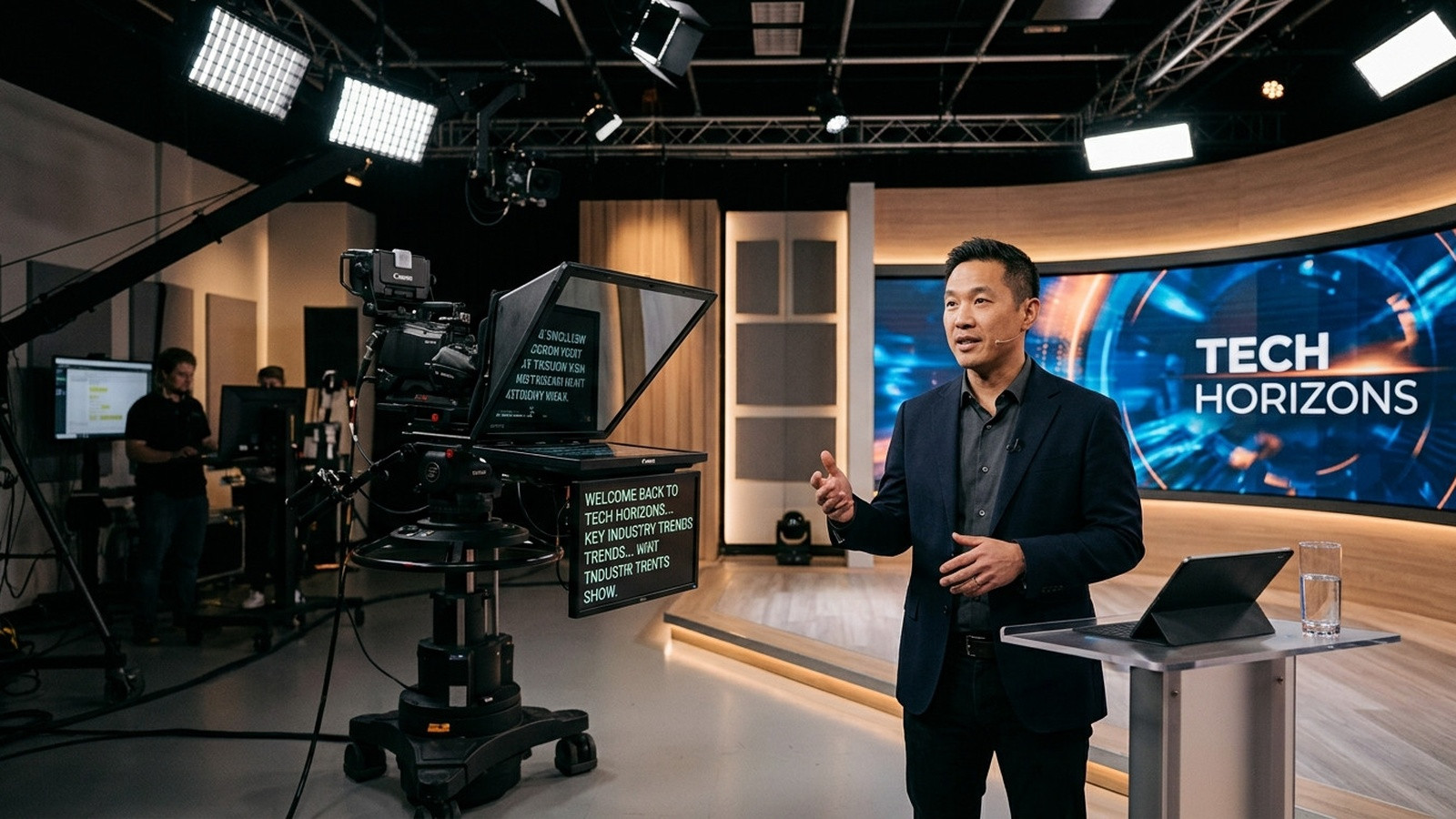
Why a Remote Teleprompter Is a Game Changer for Live Streams
Live streams demand uninterrupted delivery, yet moving between a laptop and the camera to adjust scrolling speed is a distraction that can break audience engagement. A remote teleprompter lets the operator stay off‑camera while the talent reads a synced script, preserving eye‑contact and confidence.
Core Gear You’ll Need
- Tablet or smartphone mounted behind a 45‑degree beam‑splitter glass (or a simple iPad stand if you don’t have glass).
- Camera with HDMI or SDI output to your streaming encoder (OBS Studio is a popular free choice).
- Wi‑Fi network strong enough for low‑latency browser connections.
All of these items are inexpensive and compatible with a home studio or a corporate conference room.
Step 1: Install and Open Prompter Share
Visit Prompter Share on your laptop. No account is required for talent; simply paste the generated viewer link on the tablet or phone that will display the script.
Step 2: Upload or Paste Your Script
Copy your speaking points into the editor. Use the built‑in “ear‑first” formatting: keep sentences short, add commas for natural pauses, and break long paragraphs into bite‑size lines. Prompter Share will automatically wrap text to a readable column width.
Step 3: Enable Beam‑Splitter Mirroring (If Using Glass)
Press the M key or click the mirror toggle to flip the text horizontally. The talent sees a correct reflection through the glass while the operator retains a normal view on the laptop.
Step 4: Generate the Phone Remote Link
Click “Remote” to create a secondary link that you can open on a smartphone placed at the camera. From this device you can play, pause, speed up or jump lines without touching the laptop, giving you hands‑free control while you’re behind the camera.
Step 5: Sync With Your Streaming Software
In OBS, add a browser source pointing to the talent viewer URL. Set the source size to match the tablet screen resolution, and enable “Control audio via browser” if you want to capture any on‑screen cues. The built‑in wake lock prevents the tablet from sleeping mid‑stream.
Step 6: Fine‑Tune Scrolling Speed
Use the up/down arrow keys or the on‑screen speed slider to match the talent’s natural speaking pace. For most webinars a speed of 3‑4 works well; for rapid product demos you may push to 7‑8. The remote phone can also adjust speed on the fly, which is useful when the presenter slows down for audience questions.
Step 7: Run a Quick Tech Check
Do a 30‑second test run. Verify that the tablet stays awake, the text mirrors correctly, and the browser source in OBS updates without lag. If you notice drift, refresh the viewer page; Prompter Share’s frame‑accurate clock will re‑sync instantly.
Step 8: On‑Air Tips for Smooth Delivery
- Place the tablet just below eye level; the talent should read from a comfortable distance to avoid neck strain.
- Keep the camera’s focal length between 35‑50mm to compress the background and keep the talent’s face sharp.
- Use a softbox at a 45‑degree angle from the camera to flatten shadows and reduce glare on the glass.
- Ask the presenter to practice a few lines before going live to get used to the pacing.
Troubleshooting Common Live‑Stream Issues
If the script freezes, check the Wi‑Fi signal and refresh the viewer page. Should the talent’s phone lose sync, re‑open the remote link; the frame‑accurate clock will restore alignment. For sudden screen dimming, verify that the wake lock setting is enabled in the Prompter Share UI.
Integrating Guest Speakers Across Time Zones
Send the viewer link to remote guests ahead of time. They can join from any device, and you can control their script from your laptop while they appear on the same live stream. This eliminates the need for them to install software or create an account.
Final Call to Action
With this workflow you can run polished live streams without juggling keyboards or worrying about screen sleep. Ready to try it? Try Prompter Share now and experience zero‑friction prompting for your next broadcast.