The Multi-Camera Teleprompter Workflow: How to Sync Prompters Across Studio Cameras Without Cabling Nightmares
Master multi-camera teleprompter workflows. Learn how to eliminate SDI cable clutter, align optical eye lines across two or three cameras, and keep talent locked in with frame-accurate cloud sync.
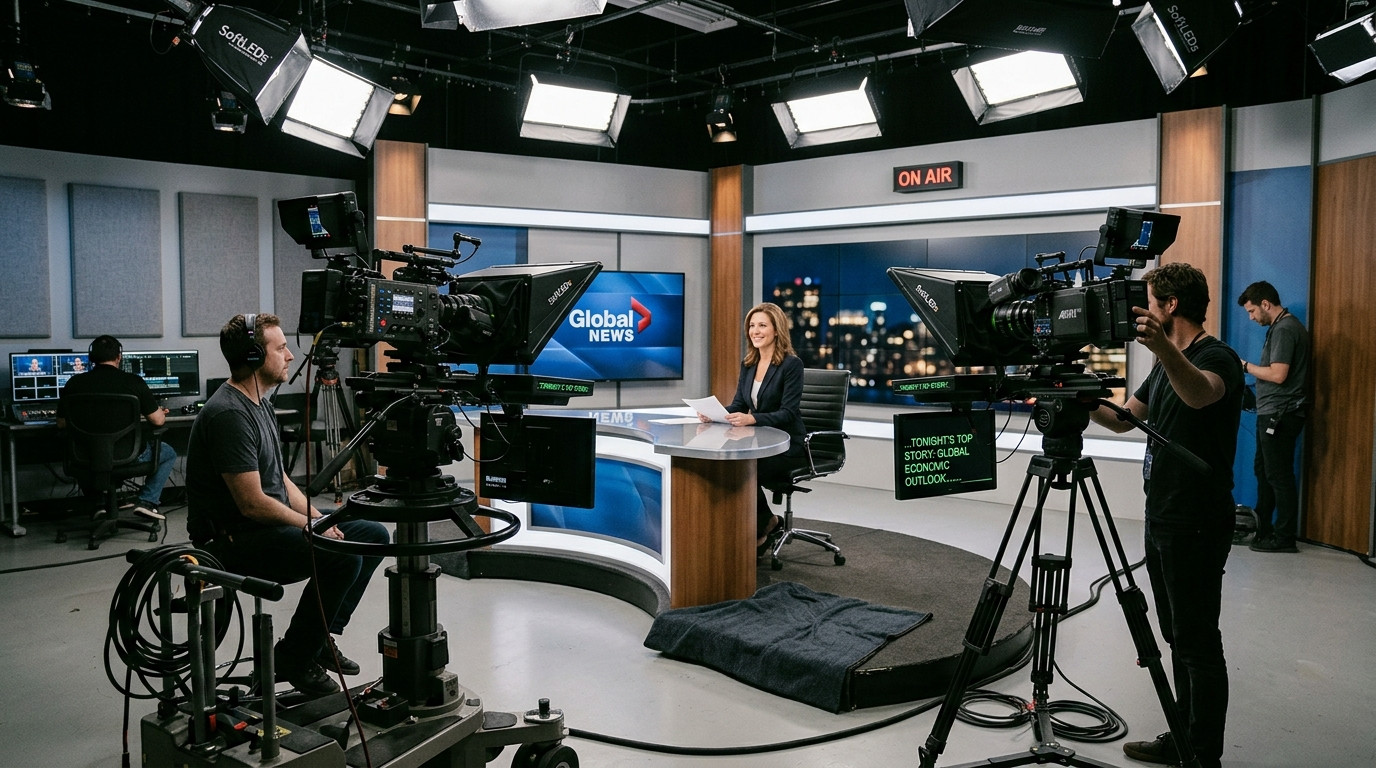
Running a multi-camera interview or broadcast brings dynamic production value to a shoot, but it introduces an immediate technical hurdle: keeping your script perfectly mirrored and synchronized across every camera lens. In a multi-camera studio setup where talent alternates between Camera A for direct address and Camera B for secondary remarks or dynamic inserts, mismatched prompter feeds will ruin takes and throw off presenter momentum.
For years, syncing text across two or three camera rigs required heavy SDI video splitters, bulky hardware distribution amplifiers, long cable runs taped across studio floors, and expensive scan converters. Today, modern digital production allows directors and directors of photography to synchronize multiple teleprompter screens wirelessly and reliably without turning the studio floor into an obstacle course.
The Core Challenges of Multi-Camera Teleprompter Setups
Multi-camera prompting introduces three specific physical and technical hurdles that single-camera shoots never face:
- Sync drift across displays: When using separate devices or unlinked software instances, one screen inevitably scrolls half a second faster or slower than another. If your presenter turns from Camera A to Camera B and finds the text two sentences ahead, their delivery stumbles instantly.
- Cabling and signal distribution clutter: Hardwiring HDMI or SDI feeds from an operator console to two or three tripod-mounted rigs creates trip hazards, restricts camera mobility, and increases setup teardown time. Long HDMI runs are notoriously prone to signal loss and loose ports.
- Eye-line matching and focal geometry: If the prompter monitors are placed at differing physical heights or optical distances, the presenter will look visibly disconnected or off-axis as they switch between cameras.
Step 1: Equalize Camera Distance and Glass Geometry
Before touching any software, calibrate the physical geometry of your camera stations. If Camera A sits ten feet away on an 85mm prime lens and Camera B sits five feet away on a 35mm lens, the perceived font size and ocular scanning angle will feel completely erratic to the presenter.
Match the physical viewing distance between your presenter and each prompter glass as closely as your lighting and staging allow. Mount identical beam-splitter rigs at precise eye level. When talent swivels their head between cameras, the text should sit at the exact same ocular plane and vertical margin.
Step 2: Eliminate Hardware Distribution Amplifiers
Traditional broadcast studios run an SDI line from an operator computer into a distribution amplifier, which duplicates the video signal to each camera monitor. While functional, this hardware-heavy method requires matching hardware cross-converters, heavy-gauge cables, and local display flipping hardware so the mirror glass does not display backwards text.
A modern browser-based workflow bypasses physical video distribution entirely. By using cloud-connected software like Prompter Share, you simply open the synced talent link on an iPad, Android tablet, or field monitor attached to Camera A, and paste the identical link into the screen mounted on Camera B.
Because each connected screen syncs its scroll position from a central clock rather than streaming compressed video over your local network, all prompters advance in frame-accurate lockstep without bogging down Wi-Fi bandwidth. When the operator taps the spacebar, adjusts speed with the arrow keys, or jumps backward two lines to reset a flubbed take, every screen in the room updates at the exact same millisecond.
Step 3: Handle Beam-Splitter Mirroring Without OS Workarounds
When you reflect a display in 45-degree beam-splitter glass, the text mirrors horizontally. In old-school multi-screen workflows, an operator had to set secondary displays to mirror mode within operating system settings, which frequently inverted the operator mouse cursor and scrambled the control monitor.
Avoid OS-level gymnastics. Choose software that isolates hardware-free mirroring to the talent screens. In Prompter Share, pressing the M key flips the text orientation exclusively on the beam-splitter screens while keeping the operator control view right-reading. You can mount an iPad in a prompter housing on Camera A and an external HDMI monitor on Camera B, toggling mirror mode on each screen independently to match the physical housing.
Step 4: Format Scripts with Camera Transition Cues
A multi-camera teleprompter script needs clear choreographic cues written directly into the text. Do not rely on an assistant director waving wildly from behind the camera rig to tell your talent when to turn.
Insert bracketed, capitalized cues into the script where camera transitions occur:
- [TAKE CAMERA 1 - WIDE] Welcome back to our annual developer keynote.
- Today we are unveiling our updated platform architecture.
- [TURN TO CAMERA 2 - CLOSE] Let us look closely at how this impacts your existing workflow.
These cues signal the presenter to transition their eye line naturally. The talent finishes the sentence, turns their head cleanly during the micro-pause, and locks onto the new camera lens without missing a syllable.
Step 5: Put Control at the Camera Lens
In smaller crews or solo multi-camera environments, the director or director of photography often stands beside Camera A to monitor framing, lighting, and performance rather than sitting behind a production desk across the room.
Instead of running back and forth to your laptop keyboard, generate a mobile phone remote link. Prompter Share provides a dedicated remote URL that opens on any smartphone. From your phone, you can start, pause, adjust scroll speeds, and reset the take while maintaining direct eye contact with talent and checking the camera viewfinder.
Furthermore, built-in wake lock ensures that secondary and tertiary tablets never dim or lock their screens during long takes or between takes, avoiding awkward interruptions during live recordings.
Smooth Multi-Camera Execution
Multi-camera video shoots demand clean coordination. By eliminating bulky video distribution splitters, standardizing optical eye-lines, and driving all screens from a unified, clock-synced remote prompter, your crew can eliminate technical friction and focus on directing confident, natural performances.
Test a synchronized two-screen or three-screen setup for your next studio shoot with Prompter Share and experience the freedom of zero-friction remote prompting.