Run Your Teleprompter From Your Phone: The Remote Setup Studio Techs Swear By
A phone in your pocket is the best teleprompter remote. This step-by-step setup covers cloud scripts, talent screens, line markers, and multi-cam sync for studio techs and corporate video teams.
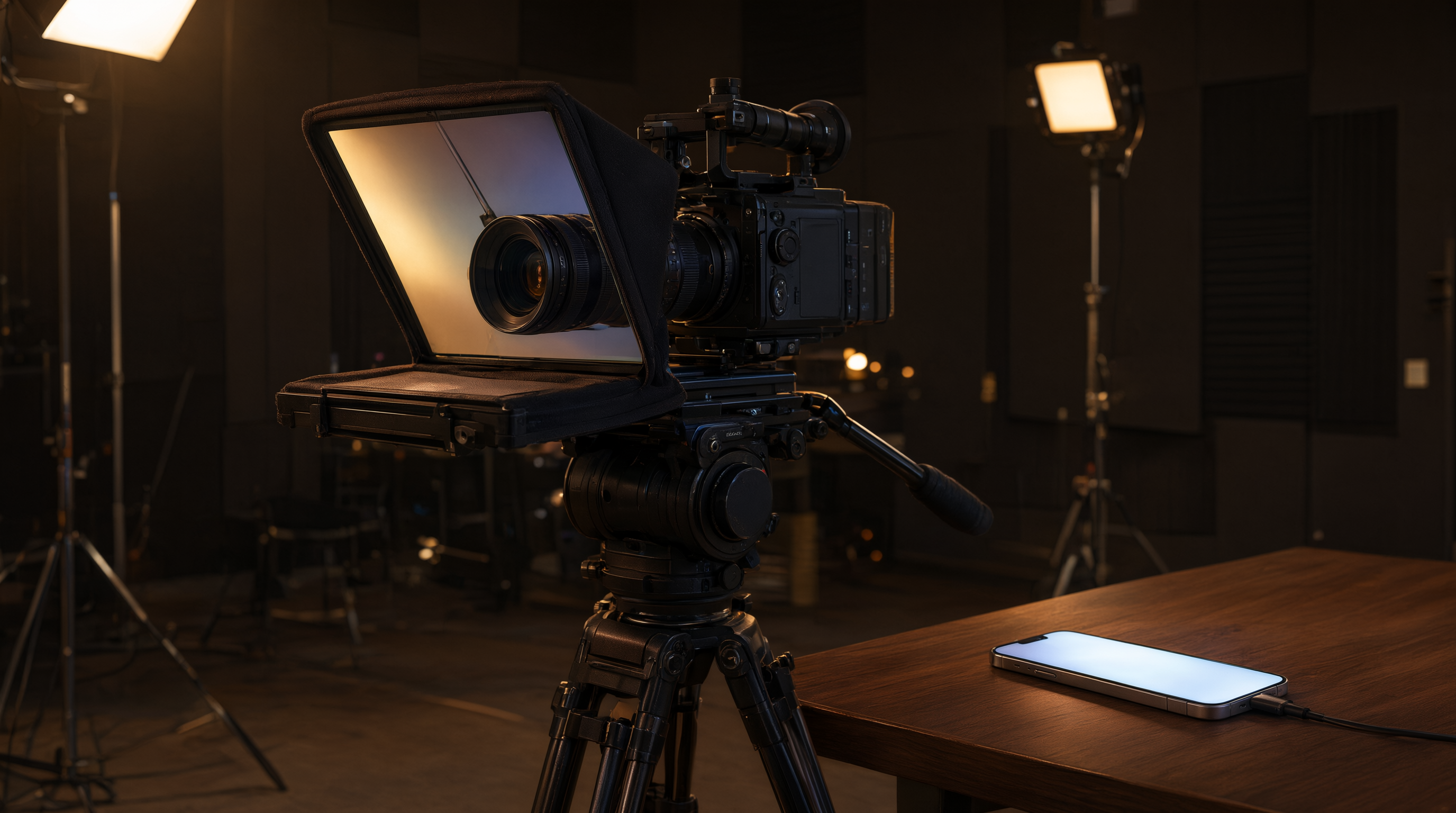
If you have ever watched a studio tech sprint across the room mid-take to pause a teleprompter, you already know why remote control matters. The talent keeps talking, the director keeps rolling, and nobody wants to yell "cut" just because the script needs to hold for a beat. A phone in your pocket solves this completely, and once you set it up right, you will wonder why you ever walked to the prompter.
Why a Phone Beats a Dedicated Remote
Dedicated prompter remotes work fine, but they add one more gadget to charge, pair, and lose. Your phone is already in your hand. A cloud teleprompter with a phone remote means the operator can stand anywhere in the studio, watch the talent on a monitor, and start, pause, or adjust scroll speed without touching the rig. For corporate video comms teams shooting in conference rooms and hotel ballrooms, that means one less tripod, one less cable, and one less point of failure.
The second advantage is sync. When the script lives in the cloud, the phone remote and the talent screen are always showing the same document. Edit a line from your desk and it updates on the prompter before the talent sits down. No USB sticks, no file versions named script_FINAL_v3, no reprinting pages.
Step 1: Put the Script in the Cloud First
Before the shoot day, paste or upload the script into your teleprompter platform from a laptop or desktop. Format it the way the talent reads best: short paragraphs, line breaks where they should breathe, and markers where the script jumps to a new section. Line markers are the feature most people skip, and they are the one that saves the most time. Mark your sections, headlines, and any spot where the director might ask to "pick it up from the third paragraph."
Step 2: Pair the Talent Screen
Set up the talent-facing display however your rig works: a monitor under beam-splitter glass, a tablet on a stand, or a confidence monitor beside the camera. Join it to the same session as the script. Confirm three things before the talent arrives: the text is mirrored correctly for the glass, the font is readable from the talent's distance, and the line markers are visible. Wake-lock should be on so the screen never sleeps mid-take. Nothing kills a good take like a tablet going dark at minute four.
Step 3: Connect Your Phone as the Remote
Open the same session on your phone. You are now the prompter operator. The typical layout gives you play, pause, scroll speed, and the ability to jump between marked lines. Keep the phone in your hand or clip it where you can see it without looking away from your monitor. With zero-lag sync between the phone and the talent screen, the script moves the moment you tap, which matters when a director is watching lip movement on a close-up.
Step 4: Rehearse the Operator, Not Just the Talent
Run one rehearsal where you are the focus, not the talent. Practice pausing the instant they ad-lib, slowing the scroll when they linger on a thought, and jumping to a line marker when the director calls for a pickup. Most bad teleprompter moments are operator moments: the scroll keeps running while the talent is thinking, or the script jumps too far because someone tapped the wrong spot. A five-minute operator rehearsal prevents all of it.
Step 5: Plan for the Signal
A phone remote depends on connectivity between your phone and the talent screen. In studios with heavy Wi-Fi traffic, connect both devices to the same clean network and keep a fallback: a second phone, or the ability to promote the talent screen to a local mode. Test the connection during setup, not during the first take. If you are running multiple talent screens, confirm every screen responds to the remote before the talent sits down. Ten seconds of checking saves a ruined interview.
The Multi-Cam Angle
Multi-cam broadcast directors get an extra benefit. When every camera's prompter feeds from the same cloud session, one phone controls all of them. The director calls "take two," the operator jumps to the right marker, and every talent screen is on the same line at the same time. Compare that to updating five paper scripts or five separate apps, and the phone remote stops looking like a convenience and starts looking like the only sane option.
Common Mistakes to Avoid
- Forgetting wake-lock, so the talent screen sleeps mid-take.
- Font too small for the reading distance. Talent should never squint.
- Skipping line markers and then hunting for a pickup point on the fly.
- Running the phone remote on low battery. Plug it in at the control position.
- Never rehearsing the operator. The first take is not the rehearsal.
Try It on Your Next Shoot
The best way to trust a phone remote is one low-stakes shoot: a company update video, a training module, a test recording. Set up the cloud script, pair the talent screen, keep the phone in your hand, and run the rehearsal. After one session where you paused the prompter mid-sentence without moving from your chair, you will not go back to walking across the room. Tools like Prompter Share were built exactly for this workflow: real-time cloud prompting, phone remote control, beam-splitter mirror mode, wake-lock, and line markers, all in the same session your talent reads from.