Remote Teleprompter Directing Across Time Zones: A Practical Workflow
Learn how to plan, set up, and execute remote teleprompter directing for talent located in different cities or time zones using Prompter Share’s zero‑friction linking, frame‑accurate sync, and mobile remote controls.
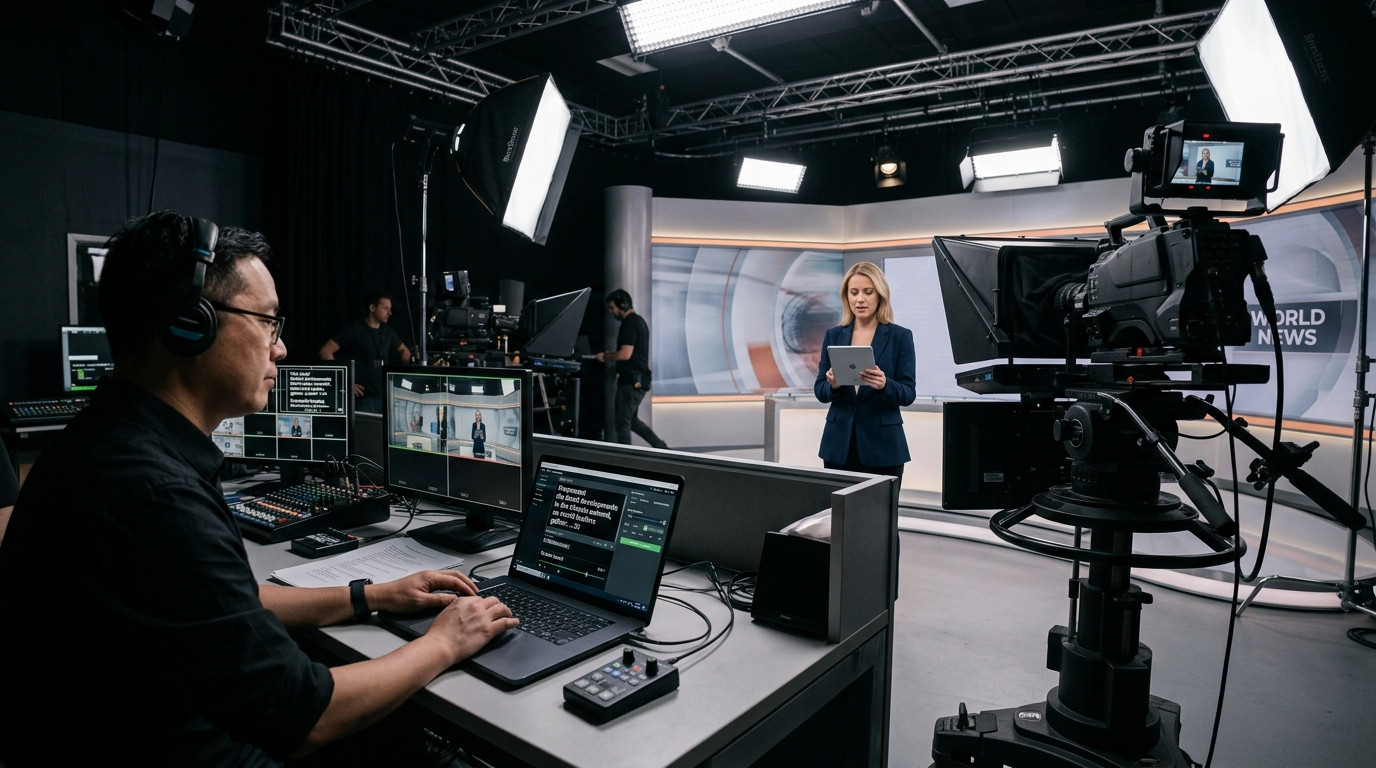
Why Remote Directing Matters
When a presenter is on the opposite coast, in a different country, or working on a shifted schedule, the director can no longer cue from the same desk. A reliable remote teleprompter lets the director keep eye contact, pace, and timing consistent without costly travel or complex hardware.
Pre‑Shoot Planning
Start by gathering the talent’s device details – screen size, operating system, and whether they will use an iPad, Android tablet, or phone. Create a master script in a .txt or .md file, then import it to Prompter Share so every collaborator sees identical line breaks. Mark natural breath points with double‑spacing or a simple pipe character (|) to give the talent clear pause cues.
Setting Up Prompter Share Links
Generate a talent viewer link from the Prompter Share controller and share it via email or chat. The talent opens the link in any browser – no login required – and the page automatically applies the built‑in wake lock to keep the screen awake. On the director’s side, open the split view, keep the editor visible, and test the M‑key toggle for beam‑splitter mirroring if a glass rig is used.
Coordinating Across Time Zones
Schedule a brief sync call using a calendar invite that includes the link to the script. During the call, confirm the talent’s screen orientation, adjust font size for readability, and run a quick 5‑second count‑in. After the call, send the remote control link (the second URL Prompter Share creates) so the talent can start, pause, or jump lines from a phone while the director stays at the laptop.
Managing Live Adjustments
During the take, the director can use the keyboard shortcuts – Space to play or pause, Up/Down arrows for speed, Left/Right arrows to skip lines – while the talent watches the fullscreen view on their device. If the talent needs a speed change, press the Up arrow to increase scroll speed or Down arrow to slow it down. For on‑the‑fly script edits, type directly into the left pane; changes appear instantly on the talent screen thanks to frame‑accurate clock sync.
Common Pitfalls and Fixes
- Screen sleep: If the device still dims, double‑check that the wake lock is enabled in Prompter Share’s settings.
- Sync lag: Ensure both devices are on the same Wi‑Fi network or use a wired Ethernet connection for the controller.
- Eye‑line drift: Position the beam‑splitter glass at a 45‑degree angle and use the M toggle to flip the text for correct reflection.
Final Checklist
- Confirm device compatibility and screen orientation.
- Import the final script and add breath markers.
- Send talent viewer link and remote control link.
- Run a 5‑second count‑in with the talent.
- Test wake lock and mirror mode before rolling.
- Keep a backup copy of the script on a separate device.
Ready to Direct Remotely?
With Prompter Share you can drive a script from anywhere, keep talent’s eyes on camera, and avoid the headaches of traditional teleprompter rigs. Start your free session today and experience true zero‑friction remote prompting.