How to Direct Remote Video Shoots with a Teleprompter: The Complete Producer Workflow
Master the remote teleprompter workflow for directing founders, executives, and remote talent across time zones. Learn setup, pacing, script prep, and live directing techniques.
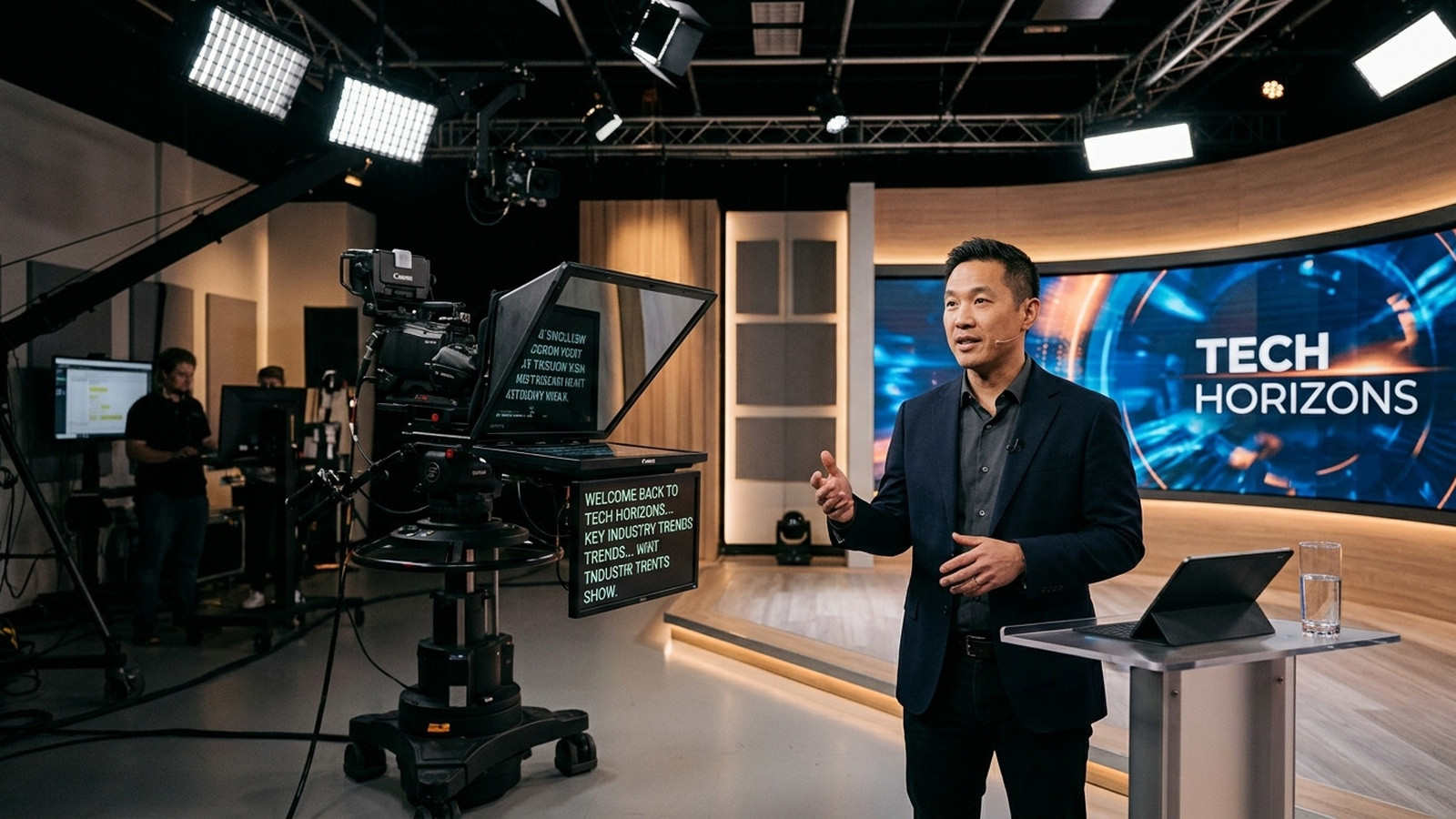
Directing a high-stakes video shoot across cities or continents introduces friction that can ruin an otherwise solid production. When your on-camera talent is a remote founder, a busy executive, or a non-actor speaking to a webcam or home studio camera, asking them to manage their own script scrolling while maintaining commanding eye contact is a recipe for robotic takes and visible anxiety.
A professional production workflow separates the cognitive load: the talent speaks to the audience, while the director or teleprompter operator drives the pace, monitors cadence, and edits copy on the fly. Executing this smoothly over the internet requires the right technical routing, deliberate script formatting, and active vocal pacing.
The Pitfalls of Traditional Remote Prompting
Before browser-based synchronized prompting tools existed, remote directors relied on awkward workarounds. Sharing a script window over video conferencing platforms like Zoom or Microsoft Teams introduces severe frame rate compression, distracting cursor movements, and latency spikes that throw talent off rhythm. Asking talent to download third-party software, configure local IP connections, or create logins minutes before a shoot creates friction that heightens on-camera tension.
Hardware failures compound the issue. If an iPad or laptop screen drops into power-saving sleep mode midway through an executive address, the take is blown. When last-minute legal revisions come in five minutes before recording, clunky tools force a complete session restart.
Setting Up the Zero-Friction Remote Prompting Pipeline
The goal of a modern remote video workflow is invisible technology. The talent should simply open a link and see their script, while the director maintains total tactical control over speed, restarts, and text formatting from the master control console.
- Universal Browser Access: Send a single viewer link to the talent. Whether they mount an iPad on a portable glass rig like the Glide Gear TMP series, position a tablet above a mirrorless lens, or read directly beneath their webcam, the link opens instantly in any browser with zero login requirements.
- Frame-Accurate Clock Synchronization: Network jitter happens. Using a tool like Prompter Share ensures both operator and talent screens calculate scrolling position from a shared clock. If the talent connection flickers momentarily, the text snaps right back into frame-accurate sync rather than drifting or lagging behind.
- Built-In Wake Lock: Ensure your prompting software commands the mobile or tablet browser to keep the display active at full brightness, eliminating the dreaded black-screen timeout mid-sentence.
- Independent Beam-Splitter Glass Mirroring: If your remote talent is using a 45-degree beam-splitter rig, enable the mirror toggle on their viewer screen. The text reflects correctly for the presenter while your control screen remains standard and readable.
Script Preparation: Writing for the Ear, Not the Eye
Corporate copywriters often draft executive scripts for annual reports or press releases rather than spoken delivery. Spoken speech uses shorter sentence structures, rhythmic pauses, and accessible vocabulary. When adapting copy for a remote teleprompter session, implement these production standards:
- Spell Out Numbers and Acronyms: Write out numbers phonetically (say 'two point four million' instead of '$2.4M') and format acronyms with hyphens (such as 'N-Y-S-E') to prevent hesitation.
- Insert Visual Breathing Cues: Use bracketed cues like [PAUSE 2 SECONDS] or [SLOW EMPHASIS] in your text so the talent knows when to let a key message settle before proceeding.
- Narrow the Reading Column: Keep the text column narrow. A wide text block forces the talent to track words with their eyes from left to right, creating visible eye darting on camera. Centering a narrow column directly inline with the camera lens maintains the illusion of direct eye contact.
Live Directing Techniques for Non-Actors and Executives
Once you are live in session, your role shifts from technician to pacing coach. Non-professional speakers frequently speed up under adrenaline or freeze when they fall slightly behind the text.
Take advantage of split-view operator controls. Tools like Prompter Share provide a resizable split screen where you can monitor the talent view on one side while editing live copy on the other. Use keyboard shortcuts (Space for pause, Up and Down arrows for granular speed control, Left and Right arrows to jump lines without stopping) to adapt to the speaker natural breathing rhythm.
Always conduct a 60-second calibration read-through before hitting record. Tell your talent: You set the speaking pace, and I will follow you. When talent realizes the operator is adjusting to them rather than pulling them along like a conveyor belt, their shoulders drop, their posture opens up, and their vocal delivery transforms into an authentic conversation.
The Complete Remote Shoot Checklist
- Send the viewer link to the remote talent 15 minutes before call time.
- Verify camera height: ensure the lens and prompting text sit at eye level.
- Run a 30-second scroll test to dial in base speed and font scale for the talent reading distance.
- Confirm the display wake lock is active and notifications are silenced on the talent device.
- Keep the secondary mobile remote link ready on your smartphone if you need to step away from the desk while directing talent.
- Record three complete takes, adjusting line jumps and emphasis cues between takes without breaking talent focus.
By streamlining technical setup and managing pacing remotely, you give your talent the freedom to deliver confident, engaging performances on camera every single time.