How to Run a Solo Teleprompter Setup with an iPad and Phone Remote
Learn how to build and operate a friction-free solo teleprompter setup using an iPad and your smartphone as a wireless remote control. Discover gear choices, lens positioning, wake lock tips, and live speed controls.
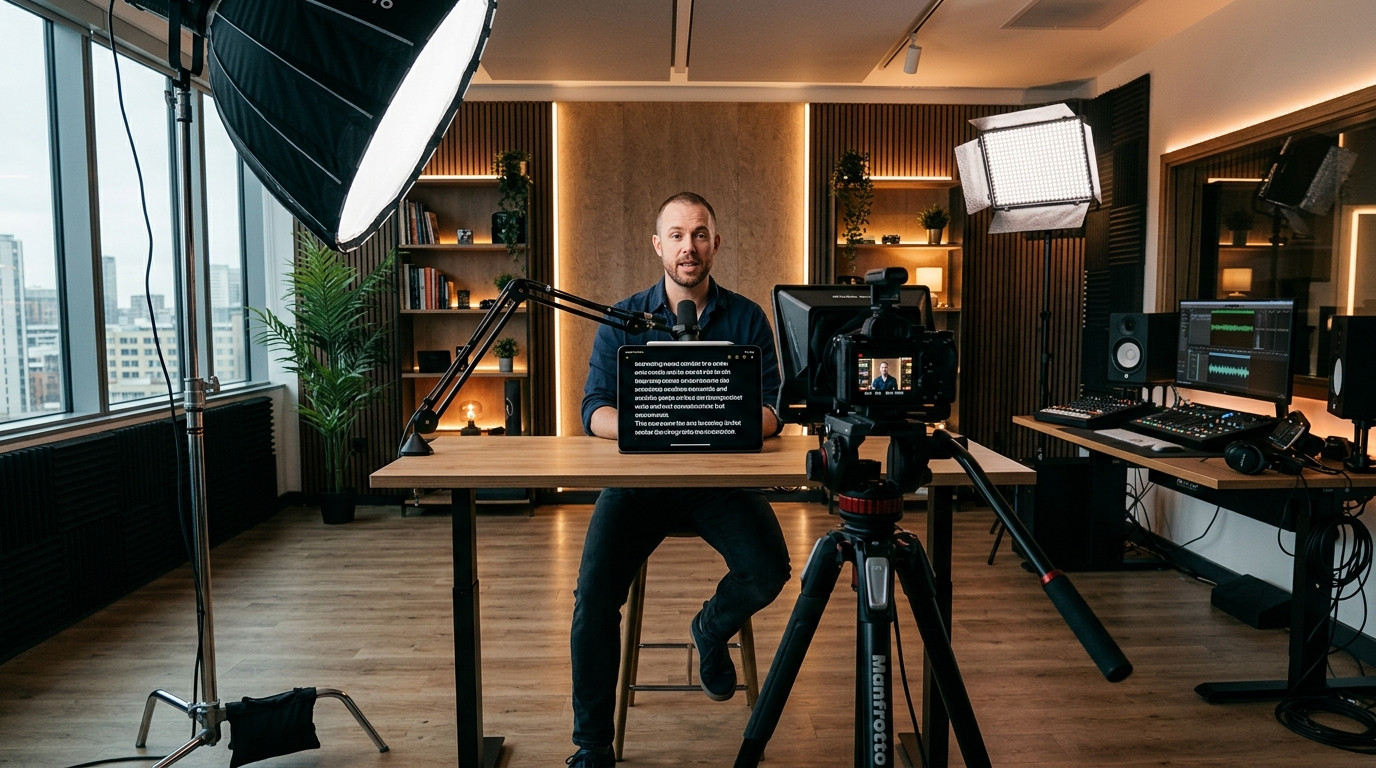
Filming video content as a one-person crew presents a continuous physical challenge. You dial in lighting, frame your shot, check audio levels, step around to the front of the camera, and immediately realize you need to adjust your script or modify scroll speed. Running back and forth between your camera position and desk controller ruins your pacing, creates cognitive fatigue, and wastes valuable shooting time.
The Core Anatomy of a Solo Teleprompter Rig
A professional solo setup requires three core elements: a camera-mounted display, a reliable mirror reflection mechanism, and a way to control script playback without touching your main camera rig. Many solo creators start by placing a tablet on a desk below the lens, but this angle forces your eyes downward and immediately signals to viewers that you are reading off-camera notes.
To achieve direct eye contact with your audience, mount your tablet directly beneath a beam-splitter glass housing attached to your lens or tripod rails. The glass sits at a forty-five-degree angle in front of your lens. It reflects text from the horizontal screen into your eyes while allowing the camera sensor behind the glass to capture an unobstructed image.
- Display Tablet: An iPad or Android tablet with a bright screen (at least 400 to 500 nits) positioned face-up beneath the glass tray.
- Camera and Lens: A mirrorless or cinema camera paired with a focal length of 35mm to 85mm on full frame to avoid optical distortion or vignette corners around the glass hood.
- Remote Controller: A smartphone held discreetly in your hand or resting on a magnetic mount right next to your framing monitor.
- Software Layer: A browser-based prompting tool that syncs across devices instantaneously without requiring app installations or local network pairing.
Eliminating the Traditional Multi-Device Pain Points
Traditional prompter apps often require native downloads on both your iPad and your computer, followed by tedious Bluetooth pairing steps or fragile local Wi-Fi handshakes. If your studio network glitches or a Bluetooth controller drops connection mid-sentence, your entire production stalls. Even worse, operating system sleep timers can cause the iPad screen to dim or shut down in the middle of a complex delivery.
Using a web-based workflow like Prompter Share removes these technical barriers entirely. Because Prompter Share features built-in screen wake lock technology, your tablet screen remains active throughout long recording sessions without requiring you to dive into system settings. Frame-accurate clock synchronization ensures that text progression remains locked across screens even if a wireless connection flickers momentarily.
How to Use Your Phone as a Wireless Teleprompter Remote
Operating a prompter solo means you need instantaneous command over playback speed, line jumps, and pausing without breaking your physical posture on camera. Instead of relying on bulky hardware pedals or awkward Bluetooth remotes with tiny buttons, you can use your smartphone browser as an interactive controller.
- Generate Your Talent Link: Open your script in your desktop browser or tablet browser and load the presenter display.
- Activate the Remote Link: Open the secondary mobile remote URL on your smartphone. No login or app installation is required.
- Adjust Speed Dynamically: Use smooth variable speed controls (ranging from 1 to 10) to match your natural speaking rhythm.
- Jump Lines on the Fly: Tap navigation controls to skip forward or back two lines whenever you need to restart a specific thought.
- Instant Restart: Reset to the top of your take with a single touch, letting you reset your position and roll again in seconds.
By keeping your smartphone flat on a small side table or gripping it subtly just outside the lower edge of your camera frame, you can pause to take a breath, adjust pacing, or repeat a line without ever stepping away from your mark.
Dialing in Lens Distance and Mirroring Settings
When text reflects off beam-splitter glass, the optical reflection reverses the characters horizontally. Standard monitors display backwards writing when viewed through the glass hood unless the software reverses the feed. Rather than wrestling with operating system display inversion or purchasing specialized reversing hardware, toggle hardware-free beam-splitter mirroring mode directly in your browser. With Prompter Share, pressing the M shortcut flips the text instantly on the talent viewer screen while leaving your operator dashboard readable.
To prevent side-to-side eye movement, position your camera at least five to seven feet away from your standing or sitting mark, zooming or choosing a tighter lens to maintain your desired framing. Keep the text column narrow and centered on the display. When words stay clustered near the center of the glass, your eyes remain anchored to the center of the lens axis, creating a natural, conversational gaze.
A Reliable Pre-Flight Checklist for Solo Shoots
Before pressing record on your camera, run through this five-point operational checklist to guarantee smooth takes from start to finish:
- Set Tablet Brightness: Set your iPad brightness to roughly 70-80% to ensure high contrast against the glass without washing out camera exposure.
- Verify Mirror Orientation: Confirm that text on the beam-splitter glass reads correctly from left to right.
- Check Your Phone Remote Connection: Test play, pause, speed increase, and line jump functions from your smartphone.
- Read the First Paragraph Aloud: Warm up your voice and verify that scroll speed matches your natural conversational cadence.
- Lock Exposure and Focus: Set manual focus on your eyes and lock shutter speed and aperture so shifting screen reflections do not trigger auto-focus hunting.
Streamlining your studio technology allows you to concentrate entirely on your delivery and energy rather than managing technical headaches. Explore how Prompter Share simplifies your solo video production workflow with instant remote links, seamless phone control, and zero-friction studio prompting.