Teleprompter for Help Center Videos: Record Support Answers Customers Can Follow
Support teams can record clear, accurate help center videos faster with a shared teleprompter, approved scripts, and a simple batch workflow that keeps every answer consistent.
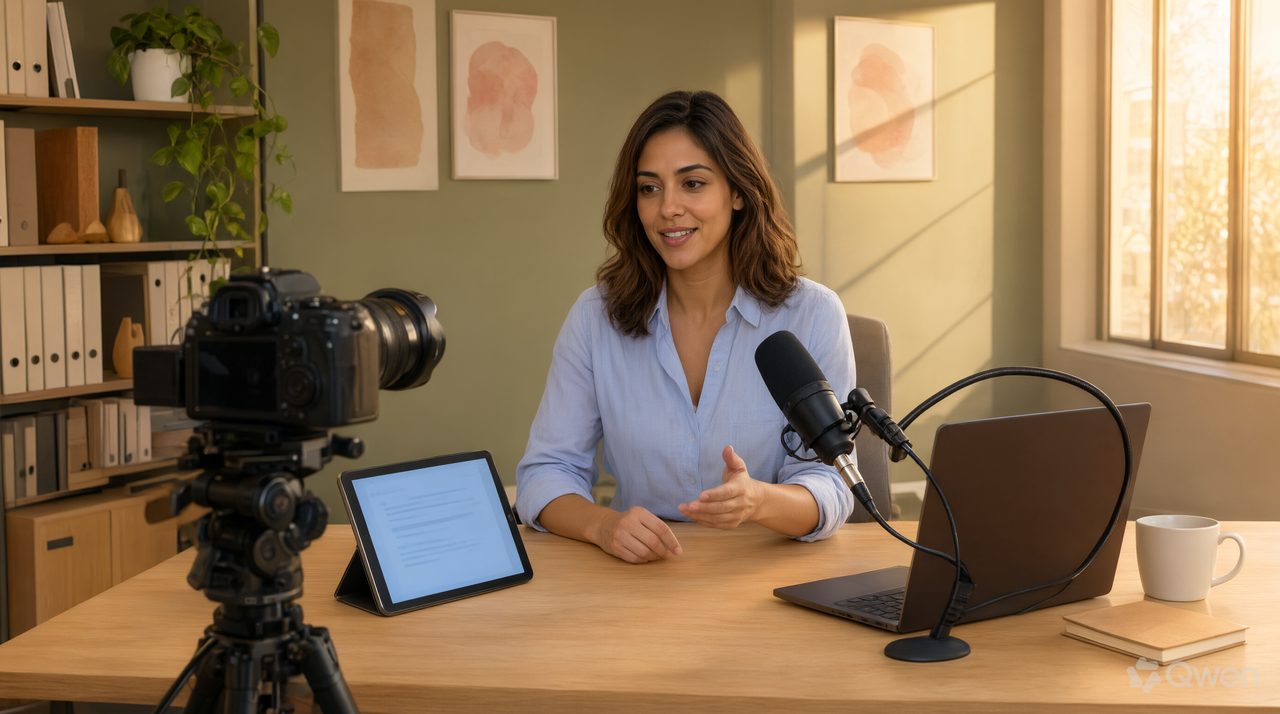
A teleprompter helps support teams record help center videos that are accurate, consistent, and easy to follow, because the exact approved answer scrolls in front of the camera while the presenter keeps eye contact with the viewer. Instead of memorizing steps or improvising details, the person on camera reads a script that support, product, and legal have already checked. With Prompter Share, an operator runs that script from one screen and the presenter reads it on any device through a single shareable link, with no account or install needed on the talent side.
Why do help center videos go wrong so often?
Most support videos fail for predictable reasons. The presenter paraphrases a step and changes its meaning, skips a warning that matters, or records a workaround that was true last quarter and is already out of date. A customer who pauses a video 3 times to rewind a missed step is about to open a ticket anyway. A prompter fixes the root cause by separating the writing from the recording. The team agrees on the words first, in a document everyone can review, and the recording session becomes a delivery task rather than a memory test. Start with the top 20 questions that drive most repeat tickets.
What makes a good help center video script?
Write the script the way a good agent talks, not the way a manual reads. Open with the outcome in one sentence, such as what the customer will be able to do when the video ends. Then give the steps in the order the customer will actually do them, one action per sentence. Keep sentences short, name buttons and menus exactly as they appear in the product, and say numbers out loud in full so there is no ambiguity. A useful target is 130 to 150 words per minute of natural speech, so a 300 word script lands at about 2 minutes, which is a comfortable length for a single task video. End with the mistake customers make most often and where to get help if the steps did not work.
- One video, one task, one clear outcome stated up front
- Steps in customer order, with exact on screen labels
- Warnings placed before the step they protect, not after it
- A short closing line that points to the related article or support
How do you record a support video without sounding like you are reading?
Delivery is a setup problem more than a talent problem. Place the reading screen as close to the lens as possible so eye movement stays small, and use a reading line marker so the presenter knows which line is live. Set the scroll speed before recording and test it with a full read through. Prompter Share speed presets go down to about 0.45 lines per second, which suits careful, step by step explanations where viewers may be following along on a second screen. Use the settable count in so the presenter settles before the first line moves, and turn on wake lock so a tablet never sleeps mid take. If the presenter stumbles, the operator pauses, steps back a line, and restarts from the last clean sentence.
For remote teams, the operator and presenter do not need to be in the same room. The operator controls pause, speed, and direction while the presenter reads from a phone or tablet in another city. If that device drops off Wi-Fi mid take, it rejoins on the right line because both screens run off one shared clock. A phone also works as a remote control on the Pro plan, which helps a solo presenter restart without walking back to a keyboard.
A simple batch workflow for a whole help center
Treat video as a library with an owner and a review cycle. List the 10 highest traffic articles, assign each a script owner, and get every script approved before booking recording time. Then record in batches: one presenter, one setup, and one afternoon can produce 6 to 8 short videos when scripts are saved in folders in one searchable library. Prompter Share Pro, at $15 per month, offers unlimited prompting time, unlimited scripts in folders, and unlimited viewer screens, so a second monitor can show the same line to a reviewer or a client watching the session. The free plan covers a real test: it includes mirroring, wake lock, and fullscreen, with 2 minutes of remote prompting per session, and only time with a viewer connected and the script moving counts.
- Pick the highest traffic articles and assign a script owner to each
- Write to the 130 to 150 words per minute guide and get approval once
- Record in batches with one setup, one presenter, and saved scripts
- Publish each video beside its article, with the same title wording
- Review scripts whenever the product changes, and re record only the affected videos
Keep maintenance honest. When a flow changes, update the script first, re record that one video, and leave the rest alone. With full text search across the script library, a support lead can find every video that mentions a renamed feature in seconds. Over months, the written answer, the spoken answer, and the product all say the same thing.
Frequently asked questions
How long should a help center video be?
For a single task, aim for about 2 to 3 minutes, which is roughly 300 to 450 words at a natural speaking pace. If a topic needs more than that, split it into two videos that link to each other, so customers can watch only the part they need.
Who should present support videos, the support team or a presenter?
A real support agent usually works best, because customers trust a voice that knows the problem. A teleprompter removes the memorization burden, so the agent can focus on sounding helpful while the approved script handles accuracy.
Can we try this before paying for a plan?
Yes. The free plan includes 3 saved scripts, one viewer screen, mirroring, and wake lock, with 2 minutes of remote prompting per session, and rehearsing alone is free with unlimited restarts. Record one top question video, publish it beside its article, and measure whether repeat tickets on that topic fall before you roll the workflow out further with Prompter Share.
Add Prompter Share as a preferred source on Google (opens in a new tab)