Teleprompter for Hybrid Events: Keep In-Room and Remote Presenters on the Same Script
A practical guide to running one shared teleprompter for hybrid events, so in-room and remote presenters stay on the same line through handoffs, questions, and connection drops.
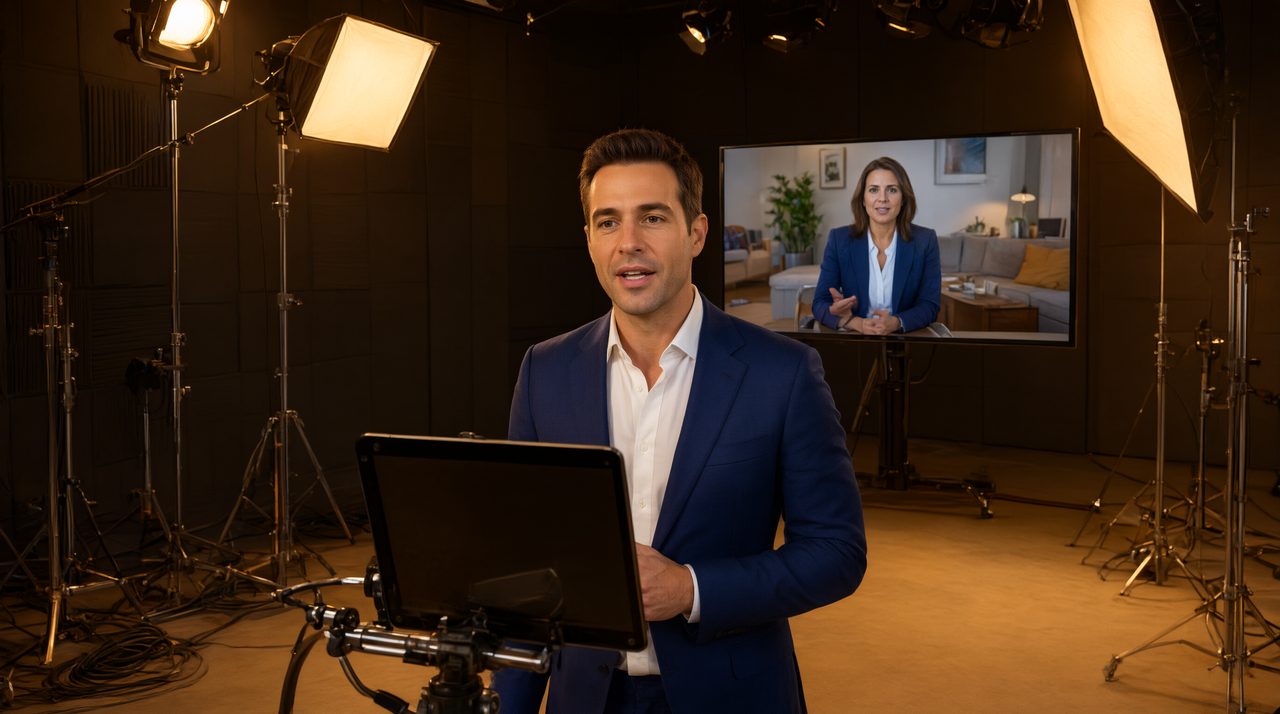
For a hybrid event, use one shared remote teleprompter so the presenter in the room and the presenter on video see the same script at the same time. With Prompter Share, the operator runs the script from one desk, talent opens one link on a phone, tablet, or TV, and no one in the audience needs to guess who is speaking next. The script is sent once, then its motion is described so both screens run off one shared clock, which keeps a multi-site presentation feeling like one show instead of two separate broadcasts stitched together.
How do I run a teleprompter for talent in another location?
Start with the simplest setup that still gives the operator control. The operator keeps the script on the desk screen, checks the reading speed before the show, and sends the talent a single shareable link. Talent does not need an account and does not need to install anything, so you can add a remote speaker minutes before the session without a tech support call.
Before you go live, run a short rehearsal with the actual remote presenter, not just a stand-in. Ask the presenter to read two paragraphs at show speed while the operator practices pausing, moving back a line, and jumping forward to a cue marker. This rehearsal reveals small problems, such as text that is too small on a phone or a tablet that locks mid-take.
Use this pre-show checklist for every remote presenter:
- Send the link early and confirm it opens on the device the presenter will actually use.
- Set the font size for reading distance, not for how the script looks on the operator screen.
- Turn on wake lock on tablets so the screen does not sleep in the middle of a take.
- Agree on a hand signal or chat message for pause, repeat that line, and move to the next section.
- Keep a printed backup of the first page in the room, just in case a device fails.
How do you keep in-room and remote presenters on the same script?
Give every screen the same source of truth. When the talent monitor, the client monitor, and a second camera monitor all stay on the same line, the director can cut between cameras without worrying that one presenter is ahead. That shared line also makes handoffs sound natural, with a pause at a clear break and a clean start on the next cue.
Structure the script for handoffs, not just for reading. Mark each speaker change with a clear cue, add a short bridge line for the next presenter, and keep paragraphs short so a speaker can find their place again after applause or a question. Short paragraphs, clear speaker names, and visible section breaks help everyone stay together.
If a device drops off Wi-Fi, do not restart the whole show. A device that rejoins comes back on the right line, so the operator can confirm the presenter is back and continue from the current cue. Tell presenters this plan in advance, and they will stay relaxed through a glitch.
What should the operator do during handoffs and live questions?
The operator is the quiet conductor of a hybrid event. During a scripted section, follow the speaker, pause at natural breaks, and keep the speed steady. During a handoff, pause at the agreed cue, wait for the new speaker to settle, and resume only when that speaker is ready.
For live questions, keep the main script paused, let the presenter answer naturally, and use cue markers to jump back to the next section when the answer ends. Do not scroll while someone is thinking. The prompter supports the scripted parts, while unscripted answers sound better when the presenter looks at the audience.
Speed control deserves special attention in hybrid shows. Prompter Share offers speed presets down to about 0.45 lines per second, plus pause, back, forward, and keyboard shortcuts. Set the starting speed a touch slower than you think you need, since a scroll that runs ahead of the speaker creates a rushed delivery that is hard to recover from.
How much does Prompter Share Pro cost?
Prompter Share Pro costs $15 per month. It includes unlimited prompting time, unlimited scripts in folders, unlimited viewer screens, phone remote control, countdown and cue markers, a reading line, and .txt and .docx import. For a hybrid event, the unlimited viewer screens and phone remote matter most, since the operator can step away from the desk and still keep every screen in sync.
The free plan costs $0 and is a useful way to test the workflow first. It includes 2 minutes of remote prompting per session, with only time with a viewer connected and the script moving counting toward that limit. Rehearsing alone is free, restarts are unlimited, and the plan includes one viewer screen, 3 saved scripts, mirroring, wake lock, and fullscreen. The limit is per session, not 2 minutes total per month.
For beam-splitter rigs in the room, mirroring with horizontal and vertical flip keeps the reflected text readable, while remote presenters read the same script normally on their own devices. If you are planning a hybrid town hall or a conference with remote keynotes, try the workflow on Prompter Share in rehearsal first, then use the same link and cues on show day.
Frequently asked questions
Does remote talent need an account to read the script?
No. Talent opens one link on a phone, tablet, or TV, with no account and nothing to install. That keeps onboarding fast for guest speakers, executives, and panelists who should not need a tutorial before they present.
What happens if a remote presenter's connection drops?
The device rejoins on the right line when it reconnects, so the operator can confirm the presenter is back in place and continue from the current cue. A short pause and a clear cue marker make the recovery almost invisible to the audience.
Can several monitors show the same line at once?
Yes. Multiple viewer screens, such as a talent monitor, a client monitor, and a second camera monitor, stay on the same line. That shared line is what lets a director cut between cameras during a hybrid event without losing the script.
Add Prompter Share as a preferred source on Google (opens in a new tab)