Teleprompter for Keynote Speakers: Own the Stage Without Losing the Room
A keynote teleprompter playbook for stage setup, rehearsal, pacing, and backup plans, so speakers deliver a polished talk without sounding like they are reading.
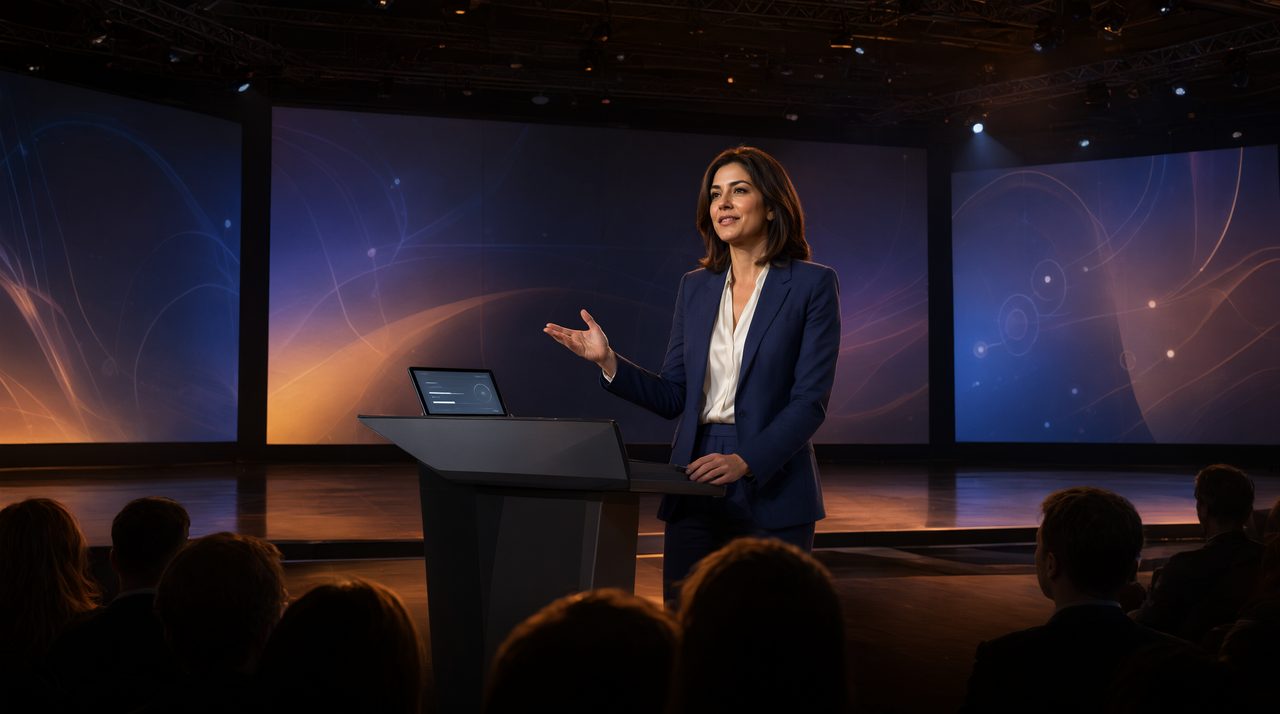
How Does a Teleprompter Help a Keynote Speaker?
A teleprompter helps a keynote speaker deliver a prepared talk with confidence, because the speaker can glance at the next line, then look back at the audience and speak it in their own voice. It is not about reading word for word without ever looking up. It is about removing the fear of forgetting a key point, a name, or a number, so the speaker can focus on delivery, timing, and connection with the room. For a keynote, where the talk may run 20, 40, or 60 minutes and there is no second take, that safety net changes everything.
Keynotes are different from a short recorded video. The audience is live, the schedule is tight, and the speaker is often walking a stage. A cloud teleprompter fits this setting, because the operator runs the script from one screen while the speaker reads it on another device anywhere on stage. With Prompter Share, talent needs no account and nothing to install, one link opens on a phone, tablet, or TV, and multiple viewer screens stay on the same line.
What Should Your Stage Setup Look Like?
Start with placement. The speaker should read with a natural, forward gaze, not by looking down at a laptop or craning their neck. A tablet on a stand at eye level, a monitor at the foot of the stage, or a confidence monitor in the lectern all work, as long as the speaker can glance at the line and return their eyes to the audience. If the event uses a beam splitter rig, Prompter Share supports horizontal and vertical flip. Set the text size for distance, too: the font must be readable from several feet away under stage lighting, so test it in the actual room, not just at home.
Next, decide who controls the scroll. For many keynotes, an operator offstage is best. The operator watches the speaker, not the script, and adjusts the pace to match the delivery. Prompter Share gives the operator pause, back, forward, and speed controls, with speed presets down to about 0.45 lines per second, plus keyboard shortcuts and a settable count in. On Pro, a phone works as a remote control. Rehearsing alone is free, and on the free plan, only time with a viewer connected and the script moving counts toward the 2 minutes of remote prompting per session, with unlimited restarts.
How Do You Rehearse So It Sounds Like You, Not Like Reading?
Rehearsal is where a keynote teleprompter either disappears or gives itself away. Know the talk first, then add the prompter. Run through the full speech out loud once without any screen, so the ideas live in your head. Then rehearse with the prompter at stage pace, and let the operator learn your cadence. Professional speakers typically aim for 140 to 160 words per minute, fast enough for energy but slow enough to follow. If you rush, the operator slows the scroll. If you linger on a story, the operator pauses and waits.
Write the script for speaking, not for reading. Short sentences land better on stage than long, winding ones. Mark pauses with blank lines or cue markers, so you have a moment to breathe, make eye contact, and let a point land. On Pro, countdown and cue markers show what is coming next. Practice the movement too: glance at the monitor, then speak to the far side of the room while you move. Record a rehearsal on video, and if you are filming the keynote, a video team such as Envy Creative can help you spot moments where your eyes drop to the screen too long.
How Do You Handle Applause, Ad Libs, and Surprises?
Live audiences are unpredictable, and that is a good thing. Applause, laughter, and a question from the crowd break the rhythm of a script, so the setup must bend instead of breaking. The operator is the key. When applause starts, the operator pauses and waits. When the speaker goes off script, the operator holds the line. When the speaker returns, the operator is on the right line, ready to move again. A device that drops off Wi-Fi rejoins on the right line, so a brief hiccup does not send the speaker hunting through the script. Use short section headings the speaker can spot at a glance, and agree on signals in advance: a hand gesture for pause, a nod for move ahead.
What Is Your Backup Plan If the Screen Fails?
Every keynote needs a backup. Print a paper copy and keep it at the lectern, so if a screen fails, the speaker can switch to paper without the audience knowing. Keep a second device charged and ready, since the script opens through one shareable link on any device. And know the opening and the closing by heart: if the first minute and the last minute are solid without any screen, the speaker starts strong and finishes strong no matter what happens in between.
Frequently Asked Questions
Do I need to memorize my keynote if I use a teleprompter?
No. Know your ideas well enough to speak them naturally, but you do not need to memorize every word. The prompter holds the exact wording, names, and numbers, so you can focus on delivery.
Will the audience know I am using a teleprompter?
Usually not, if you rehearse. Glance at the line, then speak to the audience. Vary your pace, pause for effect, and move naturally. Audiences notice reading, not prompting, and rehearsal is what turns one into the other.
Can one operator run the prompter from another room?
Yes. The operator runs the script from one screen and the speaker reads it on another device through a shareable link.
A great keynote is not about perfect memory. It is about a clear message, delivered with confidence, at a pace the audience can follow. A teleprompter gives you that confidence, and a rehearsed setup makes it invisible. Try it at promptershare.com: the free plan costs $0 with 2 minutes of remote prompting per session, and Pro is $15 per month with unlimited prompting time, unlimited scripts in folders, unlimited viewer screens, and a phone remote.
Add Prompter Share as a preferred source on Google (opens in a new tab)