Teleprompter for Live Streaming: Read Your Script Without Losing the Chat
A studio technical director's guide to running a teleprompter during live streams: hardware that fits a streaming rig, scripts written for interaction, hands-free scroll control, and a pre-stream checklist.
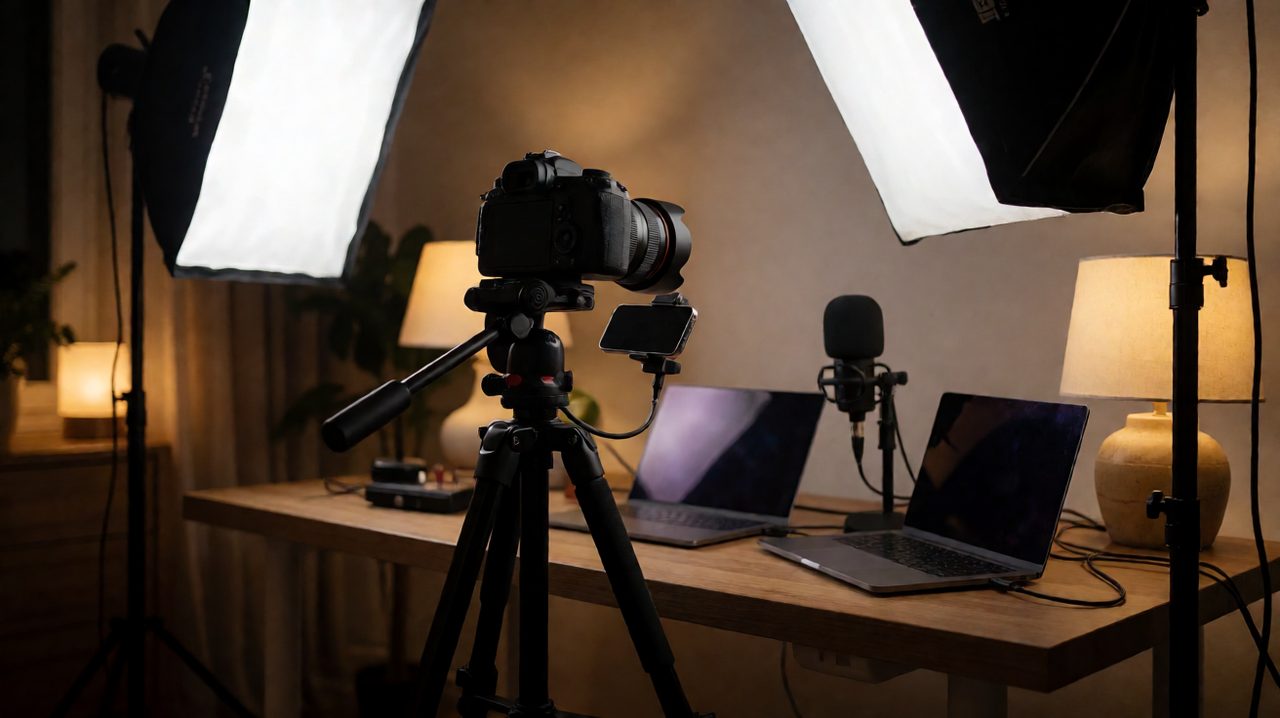
Live Streaming Removes the Safety Net
When you record a video, every mistake comes with a delete key. You flub a line, you re-record. Live streaming offers none of that. The moment the broadcast goes out, every stumble and every wandering eye is public and permanent. That is exactly why a teleprompter matters more for live work than for any recorded format, and why most streamers set theirs up wrong on the first try.
Viewers decide whether to stay within the first thirty seconds, and nothing kills momentum faster than a host who keeps glancing off-camera to read notes. A teleprompter scrolls your script directly under the camera lens at a controlled pace. You read while looking straight into the lens, and your audience sees someone talking directly to them. The trick is choosing a setup built for live, not one designed for a studio shoot.
Recorded-Video Rigs Do Not Belong on a Stream
Most teleprompter advice assumes a classic beam splitter rig: glass in front of the lens, tablet mounted below, camera shooting through the glass. That setup is perfect for recorded corporate video and a poor fit for a live stream. The glass, the hood, and the mounting hardware fight your streaming rig for space. You cannot reposition the camera mid-show without dismantling half the mount, and the hood that blocks stray light also blocks your view of the chat you are supposed to be interacting with.
For live work, the practical answer is a side-mounted phone or tablet sitting just under or beside your camera. A cloud teleprompter like Prompter Share runs in a browser, so you can open the script on a second monitor, a tablet, or a phone clipped near the camera, with no glass and no hardware battle. The script and your streaming window live on the same desk, and repositioning takes seconds.
Write for the Voice, Not the Page
The second mistake streamers make is writing a word-for-word speech and reading it at broadcast pace. Live audiences can smell a scripted read instantly, and a rigid script leaves no room for the one thing that makes live streams worth watching: interaction. Your prompter script should be a hybrid. Write the opener, key facts, product names, prices, and links word for word, because those are the things you cannot afford to fumble live. Write everything else as short talking-point bullets that give you room to react.
Build chat interaction directly into the script. Add line markers like [READ CHAT] or [PAUSE FOR COMMENTS] so the scroll stops where a conversation should start. Without those markers, the script pulls you forward while the chat is asking you to stop, and you end up doing both badly. Line markers keep your place visible even when you look away to read a comment, so you can jump back in without scanning.
How Much Script Is Too Much?
If you find yourself reading every word without looking up, you have over-scripted. A good rule: if the point is a fact, a number, or a name, script it. If the point is an opinion, a story, or a reaction, bullet it. The prompter is a safety net, not a leash. The stream stays live and human when the audience feels you reacting in real time.
Control the Scroll Without Touching the Mouse
Mid-stream, your hands are busy. Reaching for a mouse to scroll the script breaks flow and drifts your eyes off camera. You need hands-free control. A phone remote that controls the prompter scroll from your pocket or desk is the simplest answer. Prompter Share was built around exactly this: the script runs on your talent screen while your phone acts as the remote, starting, pausing, and adjusting speed without you touching the computer.
Set your scroll speed to match your natural speaking pace before you go live. Most people speak between 130 and 160 words per minute, and reading aloud runs a little slower than conversation. Rehearse your opening segment with the scroll running, adjust until the pace feels like talking instead of chasing, and lock it in. Dialing in speed while the chat is rolling is how hosts end up reading faster and faster as the script outruns them.
The Pre-Stream Checklist
Run this five-minute checklist before every broadcast.
- Position the script directly under the lens. The closer the prompter window sits to the camera, the tighter your eyeline.
- Kill reflections. Glare from a window or ring light on the prompter screen forces you to squint or look away. Fix your lighting before the stream.
- Test one segment at broadcast pace. Confirm the scroll speed, font size, and line markers feel natural while you are actually talking.
- Charge everything. A dead phone remote thirty minutes into a stream is a preventable disaster.
- Keep a backup outline within reach. If the app or network drops, a one-page bullet outline means the stream survives any tech failure.
Recover Gracefully When Things Go Sideways
Something will go wrong on a live stream eventually. The app freezes, the internet hiccups, or a guest goes off on a tangent. The recovery technique is the same every time: pause the scroll, talk to the chat, and fix the problem out loud. Audiences forgive technical problems instantly when the host acknowledges them. They do not forgive a host who silently panics while staring at a frozen screen.
If your prompter freezes mid-sentence, finish the sentence from memory, glance at your backup outline, and keep talking. The stream is about you, not the script.
Multi-camera streamers should know which camera is live before the show starts. If your prompter screen sits under camera one, make that your home base and return your eyes there after every wide shot or guest reaction.
Start With the Right Tool for Live
A teleprompter designed for recorded studio work will always fight a live streaming setup. What you need is a cloud prompter that runs in a browser, mirrors to any screen in the room, and lets you control the scroll from your phone without touching the encoder. That is the exact problem Prompter Share was built to solve: real-time cloud teleprompting with phone remote control, beam-splitter mirror mode for your recorded days, line markers for live interaction cues, and zero lag across every talent screen. Load your script, clip a phone near the lens, and go live knowing the words will keep pace with you.