Teleprompter Monitor Brightness and Nits: The DP Guide to Studio Light Balance and Text Legibility
Master teleprompter monitor brightness calibration, nit ratings, and contrast balance. Learn how to prevent text washout against studio key lights, protect talent eye comfort, and maintain clean takes.
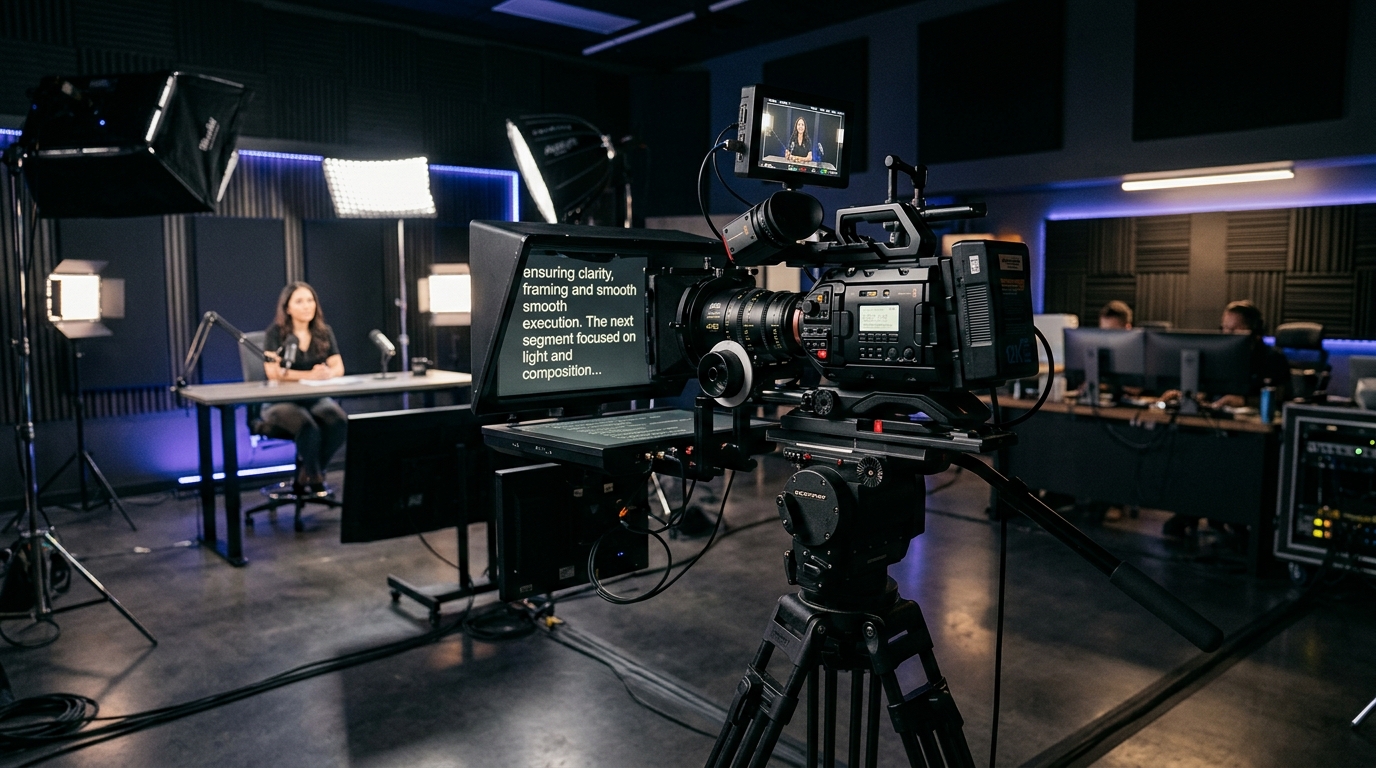
Understanding Teleprompter Monitor Brightness and Nit Ratings
Lighting a professional studio involves placing high-output key lights, hair lights, and fill sources right around the camera axis. When you mount a beam-splitter teleprompter rig directly in front of the lens, that lighting setup creates an optical balancing act. If your prompting monitor lacks sufficient luminance, your text washes out behind the 70/30 or 60/40 glass reflection. If your display is driven too bright, you create internal hood reflections, pupil constriction, and visible light spill on the presenter's face.
Monitor brightness is measured in candelas per square meter, commonly called nits. A standard consumer laptop or office tablet generally produces between 300 and 450 nits. Premium field monitors and professional prompter displays range from 1,000 to over 2,000 nits. Knowing which output level your studio environment demands prevents squints, missed cues, and blown takes.
The Optical Loss of Beam-Splitter Glass
A teleprompter beam-splitter mirror divides incoming light. In a standard 70/30 configuration, approximately 70 percent of ambient light passes through the glass to the camera sensor, while 30 percent reflects off the front surface into the presenter's eyes. Because the talent sees only a fraction of the monitor's actual output, a 400-nit tablet screen delivers an effective reflected brightness closer to 120 nits.
In a controlled interview setup with soft diffusion and modest foot-candle levels, 120 reflected nits provides clear contrast. However, if your lighting package relies on high-output LED panels punching through grid fabric, the ambient spill striking the talent side of the glass easily overcomes that 120-nit reflection. When the talent must strain to decode low-contrast lines, their delivery turns rigid and their posture leans forward toward the glass.
Matching Monitor Nits to Your Studio Lighting Package
Calibrating screen brightness requires evaluating the illumination falling directly across the prompter hood and the presenter's face. Studio environments generally fall into three operational lighting categories.
- Controlled Low-Key and Corporate Studios (300 to 500 Nits): When key lights are tightly flagged and ambient studio spill is below 25 foot-candles, an iPad Pro or 400-nit portable monitor delivers sharp text without flaring the glass hood.
- Broadcast and Commercial Stages (800 to 1,200 Nits): Larger sets with multi-point lighting, bright cycloramas, or daylight fill require dedicated high-bright monitors pushing near 1,000 nits to preserve contrast through the glass.
- High-Ambient or Sunlit Atrium Sets (1,500+ Nits): When shooting near floor-to-ceiling windows or under aggressive architectural lighting, standard mobile displays cannot compete. Specialized high-nit daylight displays are mandatory to defeat glare.
Preventing Glare, Washout, and Talent Eye Fatigue
Pumping your monitor to maximum brightness is rarely the right solution. Overly bright screens introduce distinct production issues that compromise camera capture and talent comfort.
First, an overly bright prompter acts as an uncontrolled practical light source. If a 1,500-nit screen faces the talent, the reflected white text casts an unnatural upward bluish glow onto their chin, nose, and spectacles. This secondary bounce interferes with carefully dialed key lighting and color temperature balance.
Second, reading blazing white text against a deep black field fatigues the talent's retinas during long corporate scripts. This causes ocular strain, dry eyes, and erratic blink intervals. You want the lowest monitor brightness that delivers immediate legibility against your room's ambient illumination.
Software contrast control plays an equal role alongside hardware nits. High-contrast typography rendered against a true #0B1416 dark background ensures crisp edge definition without turning the glass into an auxiliary light panel. When driving scripts through Prompter Share, operators maintain clean, responsive typography on any connected monitor, iPad, or mobile screen with hardware-free beam-splitter mirroring toggles that keep text orientation accurate without altering display output profiles.
Dialing In Font Weight, Margin Width, and Text Contrast
Hardware nits determine total luminous intensity, but typographical formatting governs perceived legibility. Thin font weights require significantly higher nit values to remain readable through beam-splitter glass because delicate serif strokes dissolve under ambient spill. Bold or medium sans-serif typefaces preserve their letterforms at lower, more comfortable brightness levels.
Margin control also impacts your light balance. Spreading text all the way across a 12-inch or 15-inch prompting monitor forces large blocks of white characters across the glass, multiplying total light bounce. Pulling script margins inward keeps the text block centered in the sweetest optical zone directly over the lens axis, reducing peripheral scatter and keeping talent eye movement locked inside the lens barrel.
The Dual-Link Remote Calibration Workflow
Balancing monitor brightness is easiest when you can adjust script pacing and line height while standing right beside the talent's mark. Traditional setups require running back and forth to an operator workstation or toggling physical monitor OSD menus under the hood.
A modern workflow separates script control from display rendering. By loading a zero-friction talent link on the prompter display and using a phone remote control link at the camera, the director or camera operator can inspect eye reflections directly in the viewfinder while stepping through text speeds. Frame-accurate clock synchronization ensures that the script scrolls fluidly at every pace setting, while built-in wake lock guarantees the display never dims or sleeps mid-sentence during delicate exposure tests.
For productions managing multiple talent monitors or running off-site directors, deploying Prompter Share enables real-time script updates and mirror toggles across any browser with zero app installs, keeping studio production focused on clean, repeatable takes.