Teleprompter Monitor Flicker and Shutter Angle: The DP Guide to Eliminating Scan Lines on Camera
Master camera shutter angle calibration, monitor refresh rates, and display brightness matching to eliminate scan lines, rolling shutter banding, and screen flicker on beam-splitter teleprompter glass.
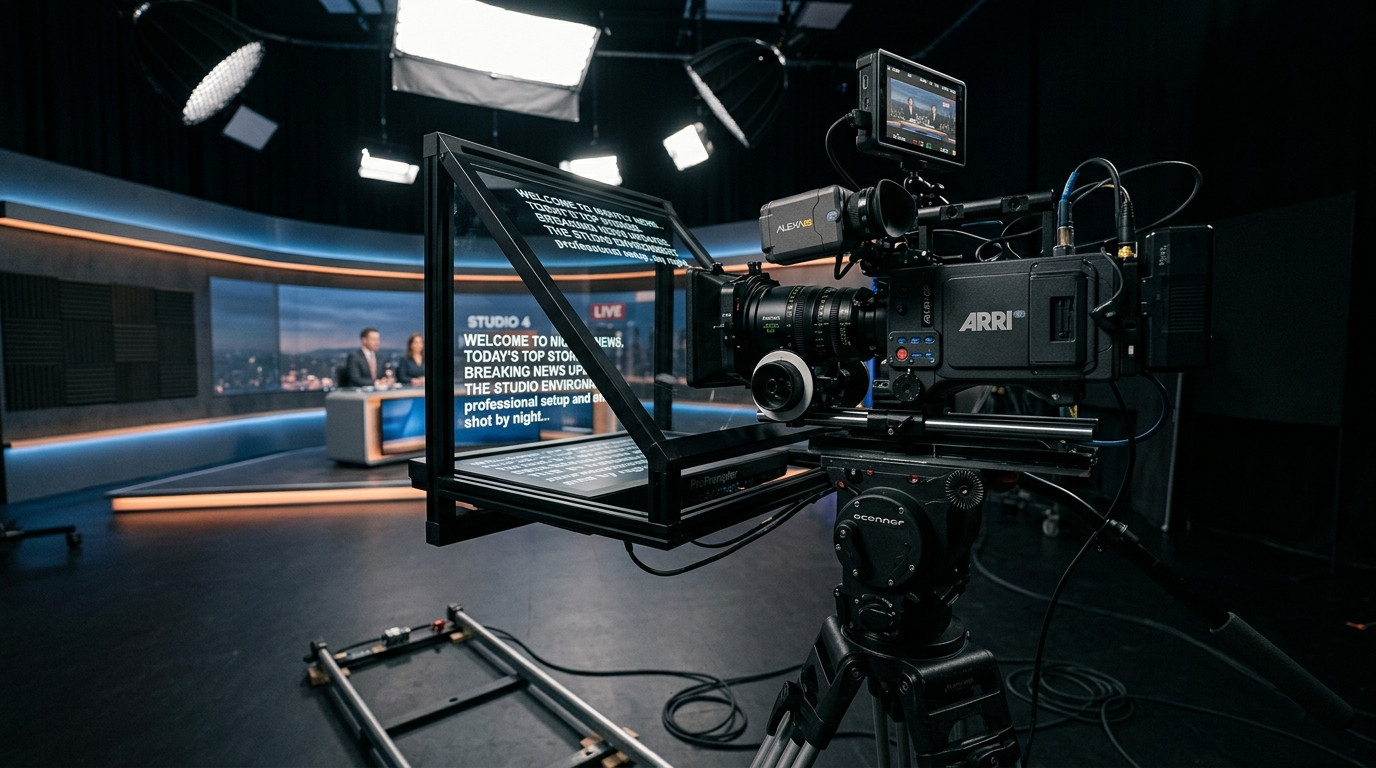
Understanding Shutter Angle and Teleprompter Display Refresh Rates
Few technical defects ruin a take faster than a faint horizontal band crawling through the talent's eyes. On high-end production monitors, you might miss it during a wide framing check. Once you punch in for a tight medium close-up, the camera sensor catches the refresh cycle of the teleprompter display bouncing off the rear surface of the beam-splitter glass. The result is screen flicker, rolling shutter banding, or subtle phase strobing that degrades image quality and distracts your audience.
This optical artifact occurs because of a frequency mismatch between the display refresh rate of the prompting monitor and the camera's shutter speed or shutter angle. Liquid crystal displays, OLED panels, and tablet screens refresh their pixels line by line, typically at 60Hz, 120Hz, or dynamic variable rates. If your cinema camera shoots at a standard 24 frames per second with a traditional 180-degree shutter angle (1/48th of a second), the sensor integrates light over a time window that does not divide evenly into the monitor's refresh cycle. In this guide, we break down how to dial in optical sync, lock down monitor frequencies, and eliminate display flicker for spotless on-camera delivery.
The Physics of Rolling Shutter Banding on Beam-Splitter Glass
In a standard camera-mounted teleprompter setup, the camera lens looks directly through a 70/30 or 60/40 beam-splitter glass pane. While roughly 70 percent of incident light from the subject passes through the glass into the lens, the reflective coating bounces the high-contrast scrolling script upward to the talent's line of sight. Any electronic pulse or refresh cycle from the underlying display reflects across the optical plane. If light levels leak into the lens hood or if the glass picks up high-frequency modulation, the CMOS sensor records dark and bright bands marching across the frame.
Banding problems are compounded by modern mobile operating systems that employ variable refresh rate technology, such as Apple ProMotion on modern iPads. When an app does not force a continuous hardware clock cycle, the screen may drop from 120Hz to 24Hz or fluctuate between frame cycles to conserve battery. That instability creates erratic rolling artifacts that drift across your recording. Controlling this interaction requires three specific adjustments: matching camera shutter angle, pinning the screen's refresh cycle, and maintaining smooth, frame-accurate text motion.
Dialing in Camera Shutter Angle for Clean Sync
When you encounter rolling shutter bars or display strobing on your camera monitor, follow this step-by-step camera calibration routine:
- Shift from 180 Degrees to Fine-Tuned Shutter Speeds: If shooting at 24fps in regions with 60Hz displays, switching the shutter to exactly 1/60th of a second (a 144-degree shutter angle) immediately harmonizes the camera integration window with the 60Hz refresh cycle of an external HDMI monitor or tablet.
- Engage Clear Scan or Synchro Scan: Professional cinema cameras from Sony, Canon, RED, and ARRI include fine fractional shutter adjustments often labeled Clear Scan or Synchro Scan. Activate this feature while pointing the lens through the hooded glass, zoom into the high-contrast text reflection, and increment the shutter frequency by decimal points until the crawling lines completely freeze and vanish.
- Adjust for 50Hz and 25fps Environments: For European and broadcast PAL productions filming at 25fps under 50Hz studio lighting, a standard 180-degree shutter yields 1/50th of a second. If using an iPad or tablet that defaults strictly to 60Hz, you will see a beating 10Hz phase roll. In this scenario, lock the camera shutter to 1/60th or 1/120th of a second to eliminate the teleprompter beat frequency while using flicker-free LED studio fixtures.
For video producers looking for a reliable, browser-based workflow that requires zero hardware converters or software installations on the talent screen, Prompter Share delivers frame-accurate clock sync across every connected device so text scrolls with consistent, jitter-free pacing that preserves camera sensor alignment.
Optimizing the Talent Display: Brightness, Contrast, and Refresh Locking
A common mistake on corporate shoots and commercial sets is setting the prompter tablet to maximum brightness. Overdriving screen luminescence washes out your camera blacks, spills illumination back into the lens shroud, and emphasizes any pulse-width modulation (PWM) dimming artifacts built into consumer OLED screens.
Consumer displays often regulate perceived brightness by turning LEDs on and off thousands of times per second. Lowering the brightness slider excessively can paradoxically introduce severe flicker if the display drops into a low-frequency PWM cycle. To strike the ideal balance on set:
- Maintain a Calibrated Medium-High Brightness: Set your tablet or studio display between 65 and 80 percent brightness. This ensures the backlight operates above aggressive PWM flicker thresholds without overpowering the subject or causing light leakage inside the teleprompter hood.
- Enforce True Dark-Theme Rendering: Always present scripts with clean off-white or light gray text against a true black background (#0B1416 or #000000). High contrast reduces the overall luminous energy radiating into the beam-splitter shroud and prevents edge blooming around the lens aperture.
- Disable Auto-Brightness and True Tone: Ambient light sensors on tablets constantly shift color temperature and backlight intensity during a shoot. Turn off auto-brightness, True Tone, and dynamic night shift modes in your operating system settings before mounting the screen into the cradle.
- Lock Refresh Rates in Display Settings: On devices with dynamic variable refresh rates, access your accessibility or display settings to lock the screen at a continuous 60Hz. A fixed refresh rate ensures that your camera's synchronized shutter speed remains locked to a steady target throughout multi-hour recording blocks.
Software Stutter vs Camera Flicker: Ensuring Frame-Accurate Scrolling
Not all visual disruption is electronic backlight flicker. Frequently, what looks like shutter banding is actually micro-stutter caused by browser rendering bottlenecks, wireless latency, or poorly optimized teleprompter code. When text jumps forward by several pixels unpredictably, talent struggles to maintain a natural cadence, and the visual judder mimics camera sync issues.
Traditional prompter software often relies on clumsy screen-mirroring protocols or video extenders that introduce dropped frames over local Wi-Fi. In contrast, modern production teams use real-time web applications where each viewer calculates position locally from a synchronized master clock. By keeping rendering lightweight and decoupling text generation from heavy operating system overlays, the talent screen glides at a steady hardware refresh cadence without lag spikes or skipped frames.
The Pre-Flight Teleprompter Camera Alignment Checklist
Before calling roll on your first take, run through this studio optical checklist to ensure zero flicker and pristine exposure:
- Mount the Hood and Seal Light Leaks: Ensure the lens shroud is completely cinched around the barrel. Ambient light leaking onto the backside of the glass exaggerates display reflections and lowers image contrast.
- Open the Talent Viewer Link: Launch the script link on your iPad, Android tablet, or studio monitor. Verify that the browser wake lock is active so the screen never dims or falls asleep mid-take.
- Toggle Beam-Splitter Mirroring: Use the dedicated mirror shortcut to reverse text horizontally for the 45-degree glass reflection while keeping your operator controls normal and readable at the control desk.
- Verify Clear Scan on a High-Contrast Test Line: Scroll sample text across the prompter glass while monitoring the camera feed on your calibrated production monitor. Inspect fine focus on high-contrast letterforms to confirm no vertical scanning artifacts exist.
- Hand Off Remote Control to the Camera Position: If the director or operator needs to step away from the primary workstation to adjust talent posture or cue eye lines, open the mobile remote control link on a smartphone to pause, jog, or adjust scroll speeds directly from the camera position.
By treating the teleprompter display as an active optical element in your camera package, you protect dynamic range, eliminate rolling shutter banding, and deliver rock-solid visual fidelity on every production. When you need a reliable remote prompting setup that combines zero-login talent links, built-in beam-splitter flipping, and frame-accurate clock sync across any location, set up your next shoot with Prompter Share.