Teleprompter for Physical Therapists: Record Exercise and Recovery Videos Patients Actually Follow
Physical therapists can record clear home exercise, safety, and recovery videos in fewer takes with a teleprompter, keeping cues, reps, and warnings accurate.
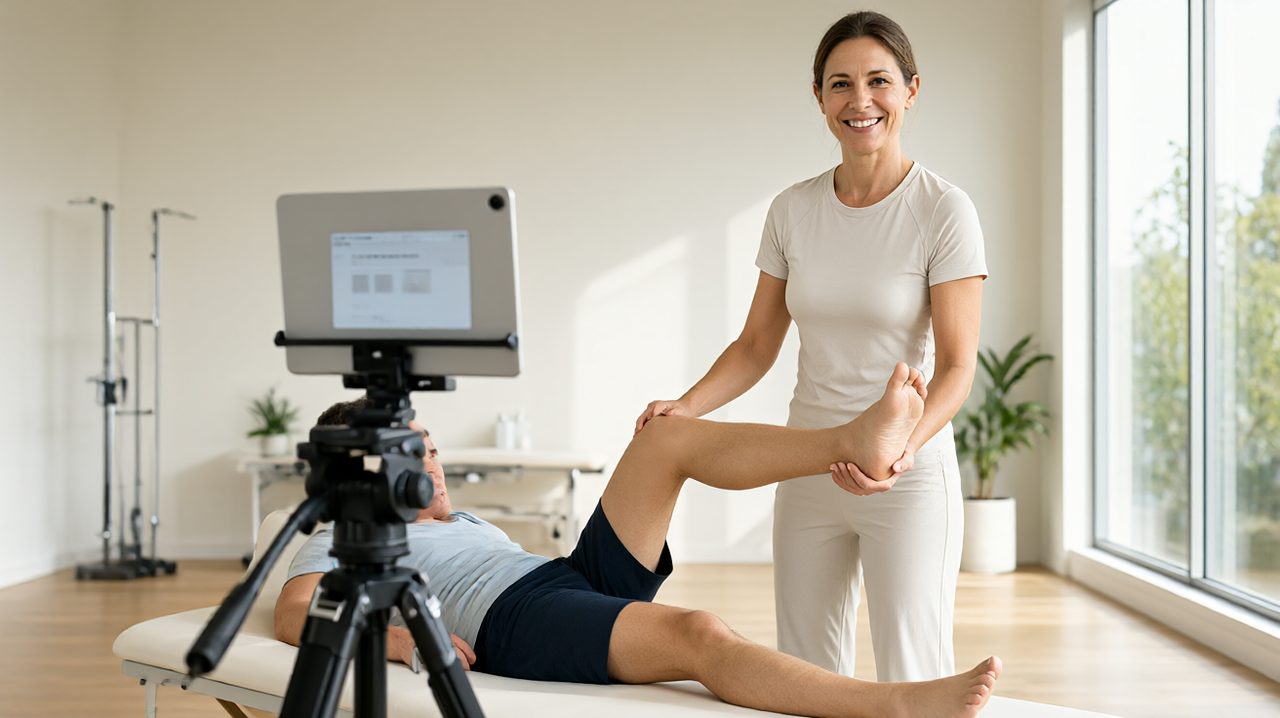
A teleprompter helps a physical therapist record a home exercise video in fewer takes by putting the exact cues, reps, and safety notes at eye level, so the patient hears the same clear instructions at home that they heard in the clinic. Demonstrate once while you read the approved wording, and patients can replay it before every set instead of guessing from a paper sheet.
Paper handouts fail on timing and form. A sheet shows 2 still positions, but recovery depends on tempo, depth, and the slow way down. A short video fixes that, and clinics report patients strongly prefer video instruction, with one outpatient survey finding patients chose video over paper 92 percent of the time. A useful clip is short: 60 to 90 seconds is about 130 to 200 spoken words, enough for setup, 1 demonstration, and the mistake to avoid.
What exercise videos should a physical therapist record first?
Start with the exercises patients get wrong most often, not your full library. Record one clip per exercise, and name each file for the movement, such as the bridge or the wall slide, so patients can find it fast. For each clip cover four things: how to set up, how it should feel, how many reps and sets to do that week, and what warning sign means stop and call the clinic.
Then add three clinic videos: a first visit welcome, a home safety checklist for rugs and lighting, and a progress check that tells patients when a program should feel easier. Keep diagnosis claims out of general videos. With Prompter Share, a therapist or aide opens a single viewer link on a phone, tablet, or TV, with no account and nothing to install, while you control the script.
What is the best remote teleprompter software for physical therapy clinics?
The best fit separates the reader from the operator. One person demonstrates and reads, another person can pause, go back, move forward, and change speed from the operator screen, even from another room. Prompter Share works that way. The script is sent once, then its motion is described so both screens run off one shared clock, and a device that drops off Wi Fi rejoins on the right line. Multiple viewer screens can stay on the same line.
Set speed slower than normal speech for exercise cues. Speed presets go down to about 0.45 lines per second, and you can pause before a critical cue so the demonstrator can get into position. Place the device close to the lens, keep the text column narrow, and turn on wake lock so the tablet stays awake mid take. If you use a beam splitter rig, turn on mirroring, with horizontal and vertical flip. A short test take catches most problems first.
How do you keep reps, cues, and safety warnings accurate on camera?
Write the script in the words you use in the room. Say slow on the way down, and keep your knee over your middle toe, instead of jargon a patient will misread at home. Check four items before every take: the exercise name, the rep and set count, any hold time, and the stop rule. Have a second clinician read it once, because a wrong number gets repeated at home every day.
When a program progresses, record a short update clip rather than reshooting everything. On Pro, scripts live in folders with full text search, and you can import from a .txt or .docx file, so you can start from the home program you already approved. Many clinics learn video basics from teams like Envy Creative, but the clinical wording always stays yours.
A simple batch session for a home exercise library
Book 45 minutes and record 6 to 8 short clips in one setup. Send scripts the day before, keep each under 200 words, and read them aloud once. Film from the angle that shows the cue: from the front for knee position, from the side for depth. Keep the whole body in frame, use a plain wall, and keep light in front of the demonstrator.
Record each exercise twice and note the best take before you move on. Use countdown and cue markers on Pro for exercise names and numbers that are easy to trip on, and use a phone as a remote when you are both demonstrator and operator. On the free plan, you get 2 minutes of remote prompting per session, counting only time with a viewer connected and the script moving, while rehearsing alone is free, plus 1 viewer screen, 3 saved scripts, mirroring, wake lock, and fullscreen. That is enough to test your first clip.
Common mistakes that make exercise videos hard to follow
The first mistake is packing 4 exercises into one video, so a patient has to hunt for minute four. Make one clip per exercise. The second is moving too fast, which hides the tempo you want them to copy. Demonstrate slowly, then repeat the key rep at normal speed. The third is reading a handout word for word. Shorten sentences and speak to one patient. The fourth is skipping privacy basics: get written consent before filming a patient, and keep names and charts out of frame.
How much does Prompter Share Pro cost?
Pro is $15 per month. It includes unlimited prompting time, unlimited scripts in folders, unlimited viewer screens, a phone remote, countdown and cue markers, a reading line, and .txt and .docx import. The free plan is $0, with 3 saved scripts, 1 viewer screen, mirroring, wake lock, and fullscreen.
Can an aide run the prompter while I demonstrate?
Yes. The aide uses the operator screen to pause, rewind, and adjust speed, while you read from the viewer link on a tablet near the camera. Talent needs no account and nothing to install, and the operator can work from another room or another clinic site.
How long should a home exercise video be?
Keep most exercise clips at 60 to 90 seconds, with a welcome or safety video under 2 minutes. One exercise, one cue set, and one stop rule per clip works best. If you want patients to follow the program you set in the clinic, try Prompter Share on your most prescribed exercise first and build the library from there.
Add Prompter Share as a preferred source on Google (opens in a new tab)