How to Run a Teleprompter Remotely: The Operator Guide to Prompting Talent in Another City
Run a teleprompter from another city: how remote prompting works, the operator checklist before talent goes live, how to stay in sync, and what to do when a screen drops.
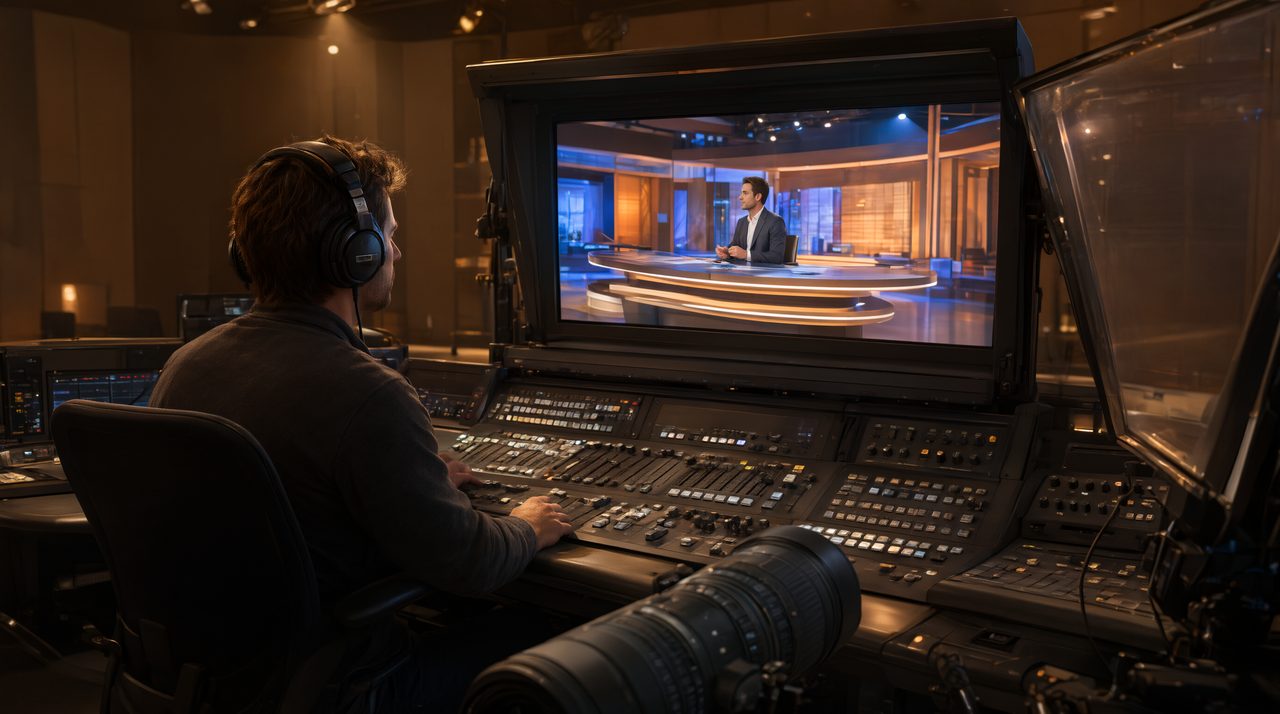
You do not need to be in the same room to run a teleprompter well. With a remote setup, the operator runs the script from one screen while talent reads it in another city, and both screens stay on the same line. The trick is a clear workflow: one operator in charge, one shared script, one separate way to talk, and a rehearsed plan for drops.
How does remote teleprompter prompting actually work?
In a remote setup, the operator sends the script once through a shareable link, and talent opens it on a phone, tablet, or TV. No account and no install is needed on the talent side. The script motion is then described so both screens run off one shared clock, rather than each device scrolling on its own. That shared timing keeps both screens on the same line, even hundreds of miles apart.
This beats emailing a script and hoping talent scrolls at the right speed. The operator controls pause, back, forward, and speed in real time, so talent can focus on delivery. When talent slows for emphasis, the operator slows too. The talent reads, the operator drives, and neither job distracts from the other.
What does the operator need before talent goes live?
Remote prompting rewards preparation, because you cannot walk over and fix a problem mid-take. Before you press record, confirm the script is final and loaded in one place, with line markers for each beat, pause, and camera cue. Confirm talent can read the line clearly at their distance, and confirm wake lock is on, so the screen cannot go dark mid-take.
Next, set a count-in so talent knows exactly when to start, and agree on a backup communication channel before the session. Keep talkback separate from the prompter link, so a note like slow down never appears inside the script. Finally, do one full rehearsal read. Typical conversational delivery runs about 120 to 150 words per minute, so use the rehearsal to set speed presets that match this talent, not a generic default.
How do you keep talent and operator in sync during the take?
Good remote operators watch the talent, not just the script. Listen for breathing, pauses, and emphasis, because those are your scroll cues. If talent pauses to let a point land, pause with them. If they stumble, nudge back one line rather than jumping ahead. Small corrections beat big ones, because a jump of three lines is far harder to recover from than a nudge of one.
Use cue markers for the moments that matter: the hook, the product name, the price, the call to action. When a marker approaches, slow slightly and give talent room to land it. On longer sessions, plan rest points too. A short pause between sections lets talent reset before the most important lines, and the operator should call those breaks first.
What happens when the talent screen drops off?
Drops happen, and a good remote workflow treats them as routine, not as a crisis. If a device drops off Wi-Fi, it rejoins on the right line once it reconnects, so you do not need to restart the script or guess where talent left off. Pause the script, tell talent over talkback to hold position, and wait. Then confirm the line out loud, count back in, and resume.
Build redundancy in anyway. Keep a second viewer screen in the talent room when you can, such as a client monitor, so one screen failure does not end the shoot. Keep the script open on the operator side, so you can read the next line aloud over talkback if every screen goes dark. That calm voice buys talent time to recover.
Mistakes remote operators make, and how to avoid them
- Scrolling to the clock instead of the voice. Match the talent, not the schedule. A take that runs long but sounds human beats a rushed take that hits the time mark.
- Talking over the take. Save direction for pauses and section breaks. Notes spoken over a live line force a retake.
- Skipping the rehearsal. One practice read reveals bad line breaks, awkward phrasing, and speed mismatches before they cost a real take.
- Running the session on one screen. A second viewer screen for the client or the second camera keeps everyone on the same line and catches problems early.
- Letting the script go stale. If the client edits a line, reload and re-confirm it before the next take. An old version on one screen is how wrong prices get recorded.
When is remote prompting the right call?
Remote prompting shines when talent and expertise are in different places: an executive in a regional office, a product expert at home, or a multi-city campaign needing one consistent voice. It also helps when the operator knows the script best, such as a producer, and flying that person to every shoot would waste budget. If talent is confident on camera but unfamiliar with the script, remote prompting supports them without adding crew to their room.
If you want to try this workflow, Prompter Share is built for it. An operator runs the script from one screen, talent reads it anywhere through a single link, and multiple viewer screens stay on the same line. The free plan is $0, with 2 minutes of remote prompting per session, and Pro at $15 per month adds unlimited prompting time, unlimited viewer screens, a phone remote, countdown and cue markers, and a reading line.
FAQ: Do I need special hardware to prompt remotely?
No. The talent opens a link on a phone, tablet, or TV they already own, and the operator runs the session from a browser screen. Beam-splitter mirroring is available for studio rigs, but it is not required for a clean remote session.
FAQ: What if the talent internet connection drops mid-take?
Pause, hold position, and let the device rejoin on the right line when it reconnects. Confirm the line over talkback, count back in, and resume. Keep a second viewer screen in the room when possible, so one drop does not stop the shoot.
FAQ: How long can a remote prompting session run?
On the free plan, 2 minutes of remote prompting per session, counting only time with a viewer connected and the script moving, with rehearsing alone free. On Pro at $15 per month, prompting time is unlimited.
Add Prompter Share as a preferred source on Google (opens in a new tab)