Teleprompter Scroll Speed and Speech Cadence: The Video Director Guide to Natural Delivery
Master teleprompter scroll speed calibration and speech cadence. Learn how to calculate on-camera words per minute, eliminate robotic delivery, and adjust pacing in real time.
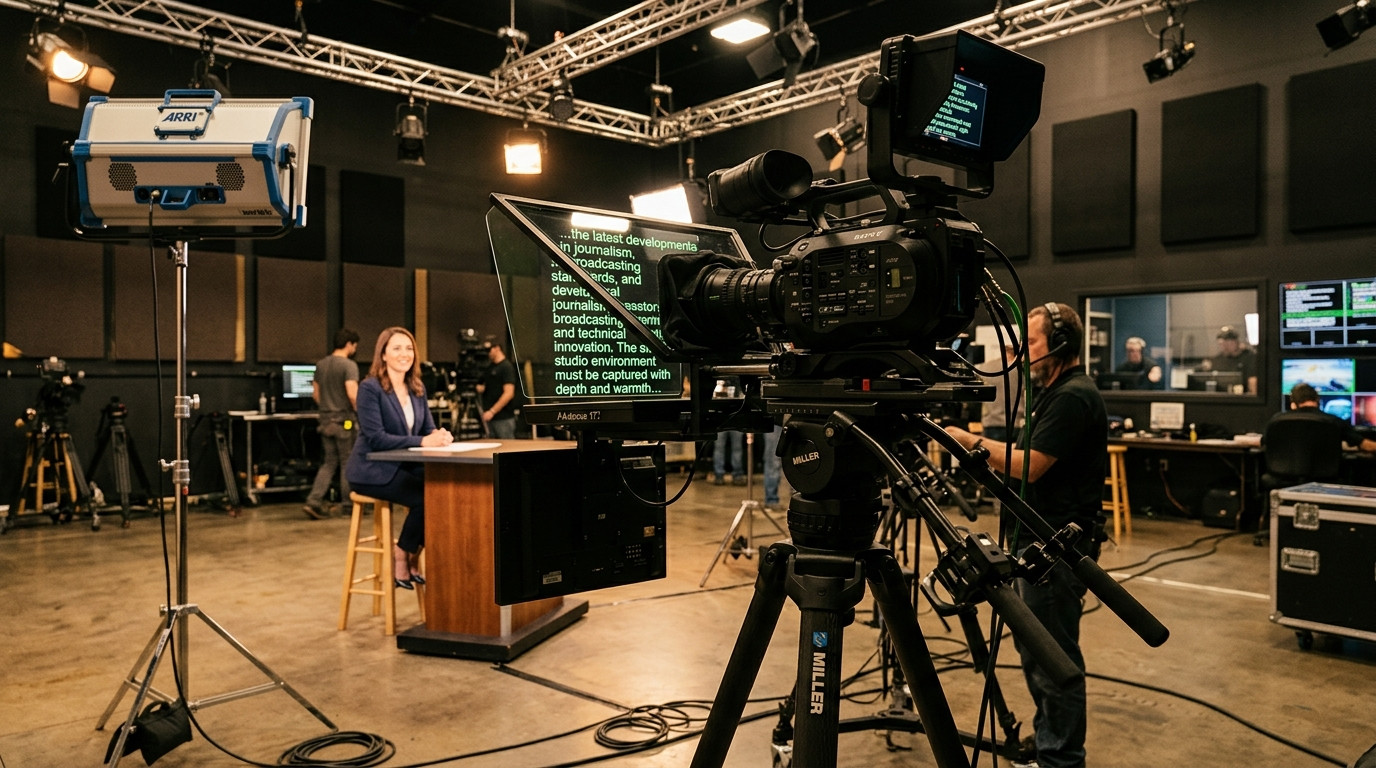
When an on-camera performance feels stiff, rushed, or robotic, directors often blame the presenter. In reality, the culprit is almost always mismatched teleprompter scroll speed. When text rolls past the lens faster than human breath supports, talent begins chasing words across the glass. Conversely, when the scroll lags behind their natural delivery, speakers stall, over-enunciate, and lose vocal inflection. Locking in the right speed turns reading into authentic conversation.
The Math of On-Camera Speech: Benchmarking Words Per Minute
Natural conversational speech rarely travels at a uniform speed, but camera performance requires a measurable baseline. Most unprompted conversations hover between 120 and 150 words per minute (WPM). When stepping in front of studio lights, adrenaline pushes novice presenters toward 170 WPM, causing shallow breathing and runaway sentences.
For professional video production, benchmark your pacing around these genre standards:
- Executive communications and thought leadership: 125 to 135 WPM. Slower cadence conveys authority, gives key business metrics room to land, and allows viewers to absorb complex ideas.
- Brand explainers and YouTube tutorials: 135 to 145 WPM. This range balances crisp technical clarity with conversational energy.
- Commercial spots and high-energy openers: 145 to 160 WPM. Punchy, dynamic cadence designed for fast social feeds and high hook retention.
To calibrate your shoot baseline, paste a 140-word sample paragraph into your script. Time the presenter reading aloud at a relaxed, unhurried pace. If they finish in 50 seconds, they speak at roughly 168 WPM, which looks frantic on lens. Use that recorded time to guide your initial prompter rate.
Why Static Autoscroll Destroys Performance
Cheap mobile teleprompter apps rely on rigid, linear scrolling sliders. Once you tap play, the text marches relentlessly upward at a single velocity. Real human speech does not work like a mechanical conveyor belt.
When telling a story, presenters speed up through narrative bridges, slow down before punchlines, pause after questions, and take physical breaths before crucial points. A fixed scroll forces talent to serve the machine rather than the audience. If the speaker hesitates to emphasize an insight, the text scrolls out of frame, triggering panic and eye darting. If they deliver a fast three-word idiom, they must wait awkwardly for the paragraph to catch up.
Professional studio workflows treat the teleprompter as an active instrument played by an operator, not an automated tape loop. The text must follow the vocal rhythm of the talent, staying locked on a stationary eye line roughly one-third from the top of the display.
Setting Up Dynamic Control: The Remote Operator and Camera Rig
The cleanest way to maintain dynamic cadence is decoupling the display from the control point. Mounting a tablet to a beam-splitter rig while forcing the operator to hover over the lens creates clutter and distracts talent.
Using a browser-based remote teleprompter like Prompter Share lets an operator sit at a production desk with a laptop, adjusting scroll speed, nudging lines, and pausing on dramatic pauses in real time. Because Prompter Share uses frame-accurate clock synchronization, speed adjustments made on the laptop reflect instantly on the talent's iPad or monitor with zero latency, even across cellular connections or studio Wi-Fi networks.
When operating without a dedicated crew member, solo creators face a distinct challenge: setting scroll speed from behind the desk, then walking over to hit mark. By the time recording starts, pacing feels off. Prompter Share solves this with an instant phone remote link. Keep the primary laptop nearby, mount your phone to your tripod leg or grip it discreetly, and tap speed controls on your smartphone screen to adjust tempo without breaking eye contact with the glass.
Script Formatting Tricks That Govern Natural Pacing
Pacing is not solely an operator function; it is baked directly into typographical layout. A dense wall of text encourages talent to read ahead, widening their eyes and creating visual scanning patterns that look unnatural on camera.
Apply these structural rules during pre-production:
- Keep margins narrow: Restrict your text column to three to five words per line. Narrow columns keep talent eyes anchored to the center of the lens, hiding horizontal eye movement.
- Format in breath units: Break sentences across multiple lines based on natural pauses rather than strict grammatical commas. If a thought requires a pause, give it its own line.
- Capitalize vocal inflection targets: Underline or capitalize words that require deliberate vocal emphasis. This guides the speaker's tone before their eyes reach the end of the sentence.
- Insert phonetic markers: Spell out tricky acronyms, foreign names, and numerical digits. Seeing '2.4 million' causes a micro-stutter as the brain translates numerals into spoken words. Write 'two point four million' instead.
On fast-paced shoots, such as commercial video projects produced with Envy Creative, clean script formatting ensures that even non-professional actors deliver complex technical copy without stumbling over visual syntax.
On-Set Speed Drills for Video Directors and Solo Creators
Before calling action, run two deliberate rehearsals designed to calibrate the psychological connection between talent and prompter speed.
First, execute the 'under-crank rehearsal.' Set the teleprompter speed 20 percent slower than the presenter desires. Instruct them to match the sluggish text and breathe into the pauses. Slower delivery feels uncomfortably slow to the speaker, but on camera it reads as authoritative, thoughtful, and grounded. This exercise forces adrenaline out of their chest voice.
Second, establish non-verbal pacing cues. If talent feels the scroll running ahead of them, agree on a simple signal, like a subtle downward finger gesture at their hip. Rather than stopping the take, a skilled operator taps the down arrow to drop speed smoothly, or uses a quick keyboard shortcut to jump back two lines while the presenter continues speaking.
When your workflow eliminates hardware dongles, screen sleep timeouts, and rigid autoscroll engines, getting a natural take becomes repeatable. Start running cleaner, conversational sessions by opening a free browser link on Prompter Share, setting your baseline WPM, and letting the script follow your talent's natural voice.