How to Dial In Teleprompter Scroll Speed for a Natural Delivery
Scroll speed is the invisible metronome behind every on-camera read. This studio-tested method walks through measuring your natural pace, tuning font and geometry, rehearsing pauses, and adjusting live so the prompter keeps pace with your thoughts.
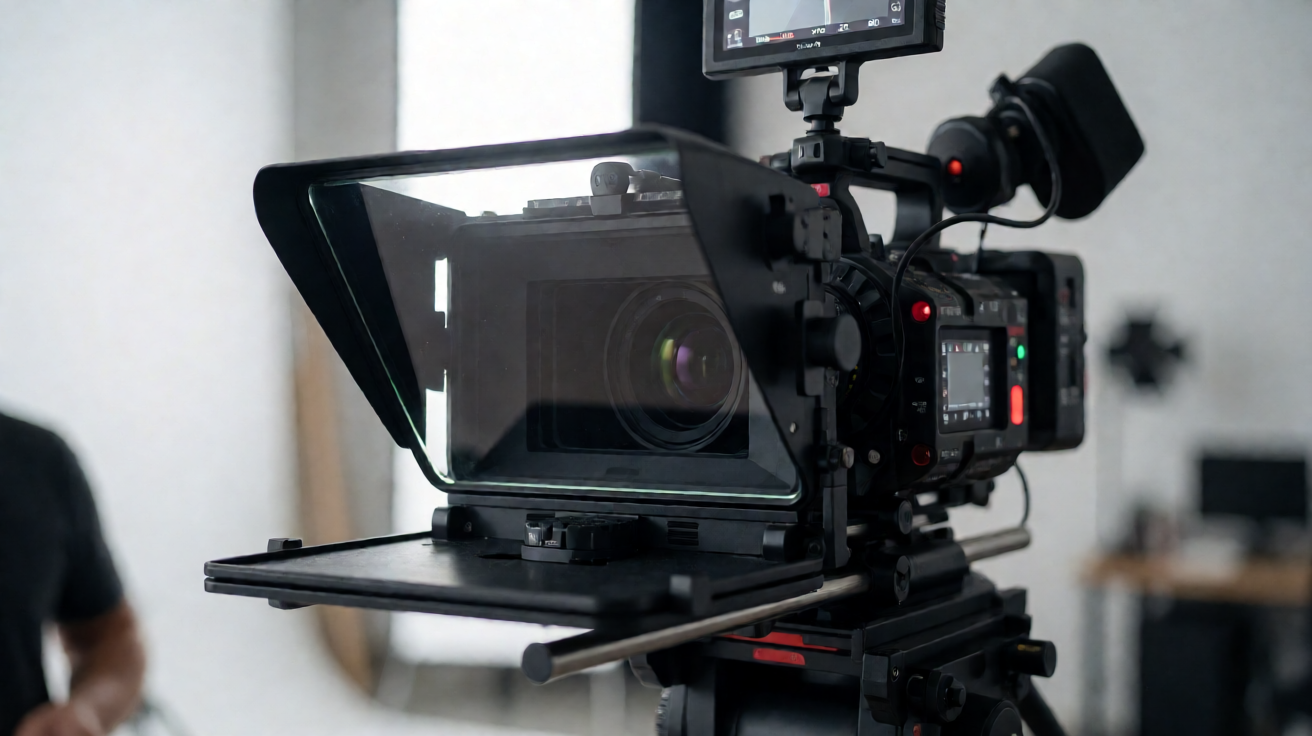
Why Scroll Speed Makes or Breaks Your Take
Ask any studio technician what ruins more takes than bad lighting and you will hear the same answer, the prompter was running too fast or too slow. Scroll speed is the invisible metronome behind every on-camera read. Set it right and the script feels like conversation. Set it wrong and talent either rushes to catch up or fills dead air waiting for the next line. Getting speed dialed in before you roll saves hours of re-takes, and it is easier than most people think.
Step One: Measure Your Natural Speaking Pace
Before you touch a speed slider, record yourself reading the script cold, no prompter, just a timer. Count the words in the script and divide by the minutes you took. Most presenters land between 130 and 160 words per minute on camera, slower than they expect. This number is your baseline. Start your prompter at that pace and adjust from there, because matching your real voice beats chasing an arbitrary default every time.
Step Two: Set the Speed Slightly Slower Than You Think
Here is the rule studio directors swear by, start slower than your measured pace, then nudge it up. A prompter that lags a touch behind you feels supportive, like it is listening. A prompter that runs ahead feels like it is shoving you down a hill. Talent unconsciously tightens up when they feel chased, and the read goes flat. Begin about 10 percent under your baseline, do a practice run, and increase in small steps until it feels like the text is keeping pace with your thoughts rather than dragging them.
Font Size, Distance, and Column Width Matter More Than You Think
Speed does not exist in a vacuum. If the font is small and the text column is wide, your eyes sweep side to side and you feel like you cannot keep up, even when the scroll is fine. The fix is geometry, not speed. Make the font large enough to read without squinting, narrow the column so each line reads in a single glance, and set the reading line near the top third of the screen. This keeps the eyeline high and the eyes nearly still, which is what sells the illusion that you are not reading at all. Every font size increase effectively buys you headroom on scroll speed.
Write the Script for the Scroll, Not the Page
Teleprompter delivery problems often start in the script, not the settings. Short sentences, direct verbs, and visible pauses are the format the scroll loves. Read every script aloud once before recording and rewrite any sentence that trips you up, instead of rehearsing the awkward version. Pull stage directions off the sentence flow and onto their own lines, and use line markers or bold emphasis on two or three words per paragraph so the eye has landing spots. A script written for reading sounds like reading. A script written for speaking sounds like you.
Rehearse the Pauses, Not Just the Words
The moment that derails most takes is not the reading, it is the pause. Talent stops for a beat, the prompter keeps gliding, and suddenly the read is two lines behind. The solution is to rehearse with the same pause pattern you will use in the final take. Mark your pauses in the script with an extra line break so you can see them coming, and choose a scroll mode that lets you hold. Modern cloud prompters with wake-lock keep the screen live through long pauses without the device sleeping at the worst possible moment, which alone eliminates a classic take-killer.
Adjust Live Instead of Stopping the Take
Pros rarely stop a take to fix speed. They adjust live. Foot pedals, Bluetooth remotes, and app-based controls let an operator bump the pace up or down in single percent steps while talent keeps rolling. A 2 percent tweak mid-sentence is invisible to the audience and saves a full restart. If you run the prompter yourself, a phone remote is the simplest version of this, one thumb tap speeds up, another slows down, and your hands never leave frame-friendly positions. That control is the difference between a shoot that finishes on schedule and one that bleeds into overtime.
Multi-Cam Shoots Need One Master Speed
When you prompt across several talent screens, speed mismatches become a continuity problem. One screen running hot and another running cool means cuts between angles never quite land on the same beat. Run every display off one synced script with a single master scroll speed, so the operator's adjustment reaches every screen at the same moment. Zero-lag sync across devices is not a luxury here, it is what keeps an edit together. Brief your talent that the scroll will keep pace with the slowest natural reader in the group, because the read that feels rushed always shows on camera.
When It Still Feels Off, Check the Room
Sometimes the speed is right and the delivery is still wrong. Glare washing out the text makes talent squint and slow down, which feels like a speed problem. A script window placed far from the lens forces wide eye movements, which also reads as lag. Before you touch the slider again, kill stray light with a hood or by repositioning the screen, confirm the font still reads cleanly from the talent's distance, and run a ten-second test take. Nine times out of ten, fixing the setup fixes the pace.
Bring It All Together on Your Next Shoot
Dialing in scroll speed is a five minute ritual that pays off every single shoot. Measure your natural pace, start a touch slow, tune the font and geometry, write for the scroll, rehearse your pauses, and keep live control in hand or underfoot. Do that and the prompter disappears, leaving just you and the audience. If you want this workflow built into your setup, Prompter Share runs your script in the cloud with phone remote control, beam-splitter mirror mode, wake-lock, line markers, and zero lag across every talent screen, so your speed is dialed in once and holds everywhere.