Teleprompter Tally Lights: The DP and Studio Guide to On-Camera Cues and Clean Takes
Master teleprompter tally light placement, switcher integration, and visual cues. Learn how to mount recording indicators on beam-splitter hoods, eliminate reflection spill, and synchronize remote prompting workflows.
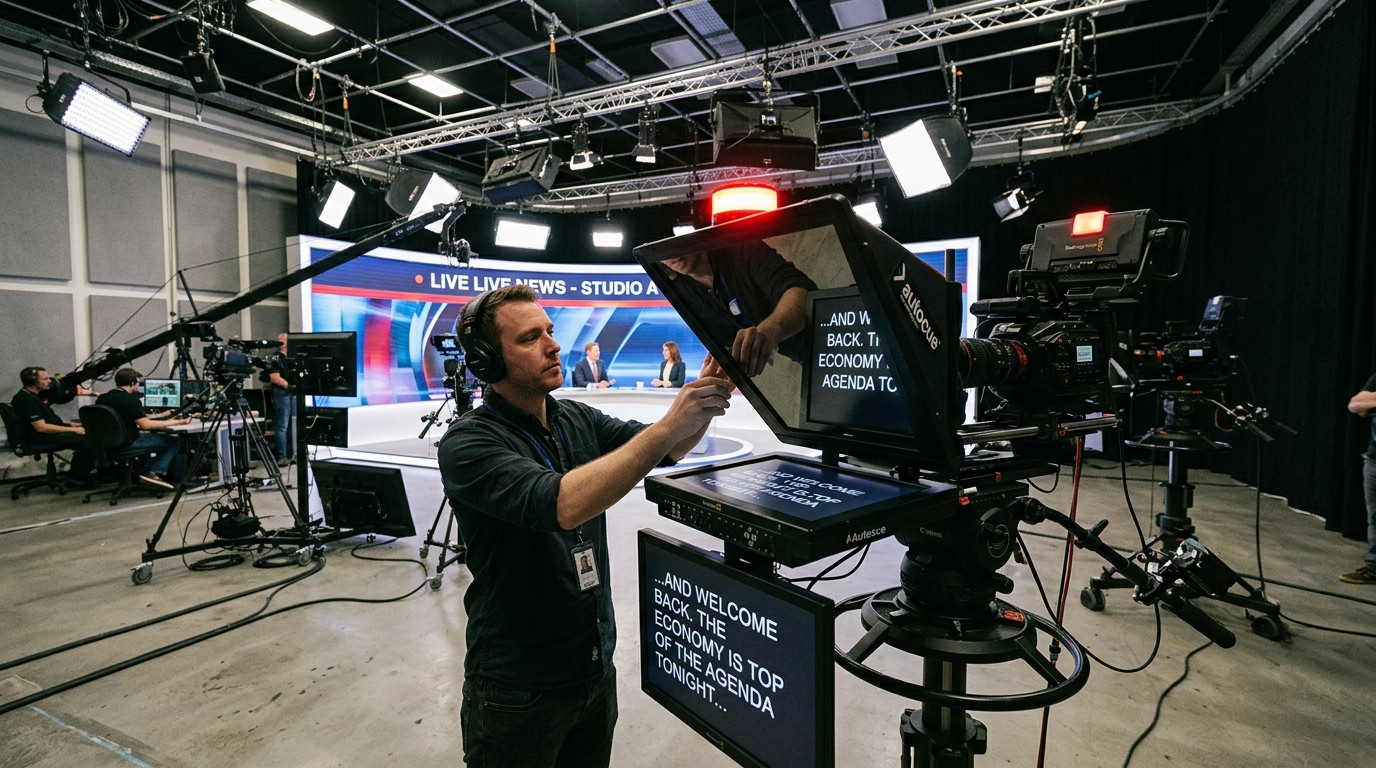
Few moments drain studio momentum faster than a presenter who launches into their opening monologue before the record bus is armed, or an executive who stops speaking mid-sentence because they cannot tell whether the camera is actually rolling. In a traditional broadcast environment, red and green tally lights provide unmistakable visual feedback. The moment you slide a heavy 70/30 beam-splitter teleprompter hood over a prime cinema lens, that vital communication link often breaks. Standard camera tally lamps become hidden behind black fabric shrouds and aluminum monitor trays, leaving on-camera talent stranded in optical isolation.
The Geometry of Teleprompter Tally Occlusion
Camera bodies from Sony, Blackmagic, RED, and Canon integrate tally indicators directly into their top plates, side screens, or viewfinders. When an operator rigs a front-surface glass teleprompter, the fabric optical shroud encloses the entire front half of the camera. The glass mirror and its supporting chassis block all direct line of sight between the presenter and the camera body. Presenters are left staring into a dark pane of glass, unsure if they are in rehearsal, standby, or live recording.
Fixing this communication breakdown requires mounting an auxiliary tally light directly to the teleprompter chassis. Placement demands precise optical discipline. If you mount a bright red LED lamp inside the shroud or too close to the rear face of the beam-splitter glass, the red glow reflects inside the dark chamber. This bounces into the front lens element, destroying shadow contrast and contaminating your camera sensor with a milky red optical flare. The tally indicator must always be mounted on the exterior lip of the prompter hood or beneath the monitor bezel, angled forward toward the talent eye line.
Selecting Program and Preview Indicator Positions
Two distinct visual signals govern professional multi-camera and live-to-tape video workflows: Program (live recording) indicated in solid red, and Preview (queued up next) indicated in amber or green. When talent reads through a prompter rig, their gaze is concentrated on the center third of the glass. Positioning an external tally unit on top of the hood draws the presenter eye line upward, creating an awkward off-axis gaze that feels disconnected on camera.
The optimal position for a prompter tally indicator is immediately below the glass reflection frame or attached to the lower outer edge of the display sled. In this position, the light sits within the presenter peripheral vision without requiring them to shift their head or pupils away from the text reading zone. If your tally hardware uses high-intensity diodes, install diffusion tape or a miniature dimmer wheel. A tally light should inform the speaker, not blind them or wash out their retinas during an intense ten-minute delivery.
Eliminating Glass Reflections and Light Spills
Any light source positioned in front of a camera rig carries the risk of optical contamination. Because teleprompter glass reflects 30 to 40 percent of incoming light toward the talent, external tally lights can create secondary bounce reflections if not flagged properly. Use an extended black snoot or matte barn doors around the tally housing. This mechanical shielding ensures that the colored light rays propagate only toward the presenter face, never splashing backward across the 45-degree beam-splitter glass.
Studio crews coordinating fast commercial video shoots, like those produced with Envy Creative, recognize that clean visual cueing keeps talent relaxed and focused on authentic delivery. When on-camera talent clearly sees their roll confirmation without audio interruptions or crew hand waves, they settle into their natural vocal rhythm much faster.
Integrating Tally Signals with Remote Prompter Control
Hardware tally lights solve the physical cueing problem in traditional control room environments where video switchers like ATEM or vMix trigger contact closures. Modern distributed video productions often lack dedicated broadcast switchers. When directing remote executives, agency clients, or multi-location interviews across different studios, technical operators need software-driven coordination that moves at the speed of the script.
This is where Prompter Share transforms the studio floor. Rather than wrestling with tangled HDMI cables or local display adapters, the operator opens the Prompter Share controller on their laptop and sends an instant talent viewer link to the iPad or monitor mounted beneath the beam-splitter glass. The viewer opens directly inside any browser without requiring talent accounts, software downloads, or operating system display mirroring workarounds.
Prompter Share features frame-accurate clock synchronization, ensuring the talent reading pace never stutters or drifts even if wireless networks fluctuate. Because the software includes a built-in wake lock, the talent tablet display will never dim or sleep mid-take while waiting for a tally cue. When the operator or director spots the recording light go live, tapping the Space bar instantly starts smooth variable scrolling. Speed adjustments can be dialed up or down in real time using the Up and Down arrow keys, keeping the script lockstep with the speaker breathing cadence.
The Camera-Mount Remote Workflow for Solo Directors
On small crews or solo shoots where the director also serves as camera operator, sitting behind a desk controller isolates you from the talent. Prompter Share bridges this gap through its dedicated phone remote control link. By generating a secondary remote link on your smartphone, you can stand directly beside the camera lens, visually confirm the tally light and camera roll state, and drive the prompter entirely from your phone.
From your phone screen, you can pause, restart, accelerate, or jump back two lines without touching the master computer. With one tap or keyboard shortcut (M), Prompter Share flips the talent view for hardware-free beam-splitter glass reflection while keeping your mobile and desk controller text right-reading and effortless to navigate.
Checklist for Calibrating Prompter Cues Before Action
- Mount the external tally light outside the shroud perimeter, shielded from the glass with a matte black flag or snoot.
- Dim the tally brightness until it registers clearly in peripheral vision without causing talent squinting or optical wash.
- Verify that no colored light bounces back into the camera lens element when testing at your shooting aperture and ISO.
- Confirm that your talent screen has active wake lock enabled so the display does not power down during extended director notes.
- Test the operator play, pause, and line-jump controls over Prompter Share to establish zero-latency pacing before calling speed.
Clean takes happen when technical uncertainty disappears from the studio floor. By pairing properly flagged tally indicators with the reliable, zero-friction remote control of Prompter Share, you give your presenters the visual confidence they need to deliver natural, engaging performances on every setup.