Teleprompter Troubleshooting: How to Fix 6 Common On-Set Failures Fast
Master on-set teleprompter troubleshooting with practical solutions for screen sleep, reversed beam-splitter mirroring, wireless sync drift, and talent pacing disconnects.
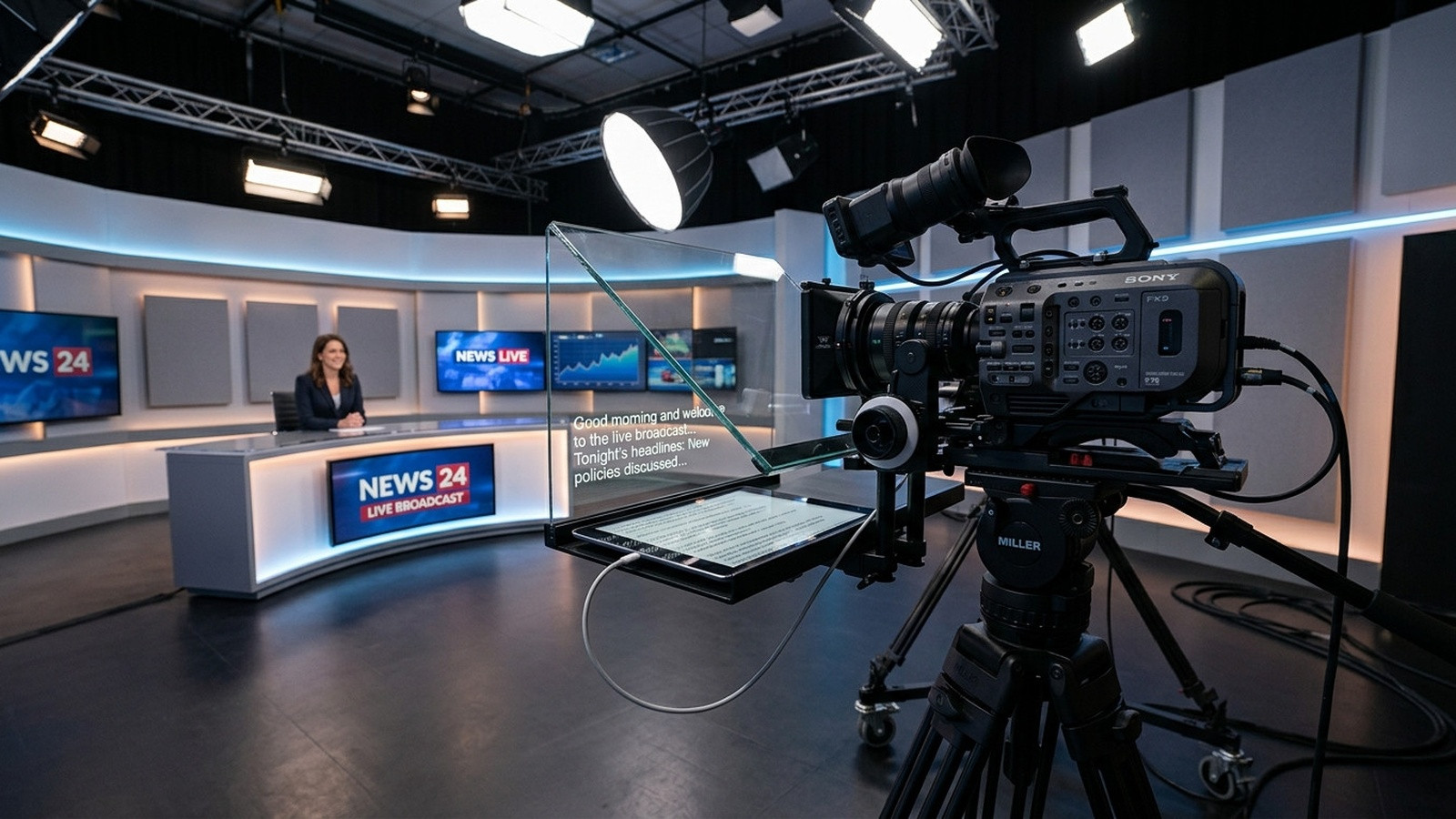
Few things derail a production schedule faster than a teleprompter failure right in the middle of an emotional or technical take. When a talent screen blacks out, text scrolls out of sync, or a beam-splitter rig displays mirror-flipped gibberish, the momentum of the entire room evaporates. Nervous executives lose confidence, experienced actors lose their cadence, and production budgets bleed time.
Teleprompter rigs combine optical glass, digital displays, networking protocols, and human motor skills. When one link in that chain fails, the shoot halts. Drawing from decades of studio and commercial field experience, here is how to diagnose and resolve the most common teleprompter failures before they cost you another take.
1. The Talent Screen Dims or Falls Asleep Mid-Take
You frame the shot, roll sound, call action, and ten seconds into the opening paragraph, the tablet screen dims or goes completely black. The talent stops speaking, looks at the lens in confusion, and the take is ruined.
This happens because standard mobile operating systems prioritize battery conservation through aggressive auto-lock timers. While you can dive into operating system settings to disable sleep timers on an Apple iPad or Android tablet, guest talent devices or rented studio monitors often reset these preferences.
The Fix: Implement software-level wake lock. Modern browser-based prompting tools like Prompter Share include native wake lock technology that forces the talent viewer screen to stay bright and active regardless of underlying system sleep timers. Always test your display for two continuous minutes during pre-lighting to ensure power-saving states remain suppressed.
2. Reversed Text on Beam-Splitter Glass Rigs
A beam-splitter teleprompter uses a 45-degree half-silvered mirror to project words in front of the camera lens. Because mirrors flip optical images horizontally, reading standard text off the reflection produces backward lettering. Production teams often scramble with hardware HDMI flip boxes, secondary graphic card configurations, or third-party operating system display rotators that accidentally flip the operator controller as well.
The Fix: Decouple mirroring between operator and talent. The prompter operator needs a normal, left-to-right view to edit copy and track line delivery, while the talent monitor under the glass requires horizontal mirroring. Using cloud-based prompter software with a dedicated mirror toggle allows you to hit a single shortcut (such as the M key) on the talent link. The glass reflection displays crisp, forward-facing typography while the operator screen remains completely readable.
3. Sync Drift and Wireless Latency Across Studio Networks
In traditional multi-device prompting setups, screen sharing protocols or wireless video transmitters introduce noticeable lag. The operator scrolls down to keep pace with the speaker, but the talent sees a stuttering feed half a second late. The speaker pauses, the operator pauses, and both end up waiting on each other in an awkward cycle of stop-and-start takes.
The Fix: Switch from video stream mirroring to clock-synchronized data feeds. Instead of transmitting heavy video pixels over congested studio Wi-Fi, modern remote prompters transmit lightweight timing instructions. Each connected screen calculates its exact pixel position against a synchronized clock. Even if a local wireless network suffers brief interference, the talent monitor maintains frame-accurate position without skipping lines or freezing.
4. Pacing Disconnects Between Speaker and Controller
Auto-scrolling scripts at a static speed creates robotic performances. When talent delivers an unscripted emphasis, takes a breath, or speeds through familiar bullet points, a rigid speed setting leaves them stranded. The text either runs away from them or drags behind, forcing unnatural delivery.
The Fix: Keep the operator in active control with granular variable speed and line-jump shortcuts. The golden rule of prompting is simple: the speaker leads, the operator follows. Equip your operator with tools that offer smooth speed gradations (speeds 1 through 10) and instant two-line jump keys to correct sudden cadence shifts without stopping the roll. If the director or solo shooter needs to control the roll directly from the camera position, launching a secondary mobile remote link lets anyone adjust playback from a smartphone without touching the main desk setup.
5. Cable Snags, Port Strain, and Video Clutter
Rigging long HDMI or SDI cables from a video village desk to a camera-mounted prompter creates hazardous trip points and introduces port strain on lightweight tripod heads. A single loose cable connection causes intermittent flickering that distracts talent during takes.
The Fix: Eliminate physical display cables entirely by running prompt links over browser URLs. By opening a direct talent link on a lightweight tablet mounted to your Neewer or studio prompter bracket, you remove heavy video cables from the camera rig. This keeps the camera package nimble for reframing, jib moves, or quick tripod height adjustments.
6. Visible Eye Tracking and Darting Pupils
When reviewing footage in post-production, you notice the presenter eyes visibly darting left and right across the frame, giving away the teleprompter immediately. This optical giveaway occurs when the text column is too wide or the camera sits too close to the talent.
The Fix: Narrow the text margins and increase the physical distance between the presenter and the glass. Place the camera at least 6 to 8 feet away and use an 50mm or 85mm lens to maintain tight framing. On the software side, constrain the text column to the center third of the screen. This narrows the presenter field of vision, allowing them to read entire phrase blocks peripherally without shifting their pupils.
The Five-Point Pre-Flight Teleprompter Checklist
Before calling sound speed and rolling camera, run through this five-point verification sequence on every setup:
- Check Optical Alignment: Confirm the lens is centered behind the beam-splitter glass with zero hood vignetting at your chosen focal length.
- Verify Mirror Mode: Ensure the talent screen is mirrored for the glass while the operator interface remains normal.
- Confirm Screen Wake Lock: Validate that the talent viewer holds full brightness without sleep timers triggering.
- Test Navigation Controls: Confirm that spacebar play/pause, arrow speed adjustments, and line jumps respond instantly.
- Execute a 30-Second Hot Read: Have the presenter read the opening three sentences aloud at performance volume to lock in baseline scroll speed.
Keep Your Next Studio Shoot Running Smoothly
Technical hiccups on set cost more than just minutes on a call sheet; they drain the energy and authenticity of your talent. By setting up resilient browser-based prompting workflows, eliminating display cables, and mastering responsive speed control, you keep the focus where it belongs: on capturing great performances.
Experience friction-free prompting on your next production with Prompter Share. Open a synced talent viewer on any tablet, drive the script from your laptop or phone, and get clean takes every time.