Teleprompter for Webinar Presenters: Stay On-Script Without Losing the Room
Webinars punish rambling and reward tight delivery. This studio guide shows webinar presenters how to set up a teleprompter beside the lens, format scripts with timed segments and slide cues, and control scroll pace so the read stays natural through live Q&A.
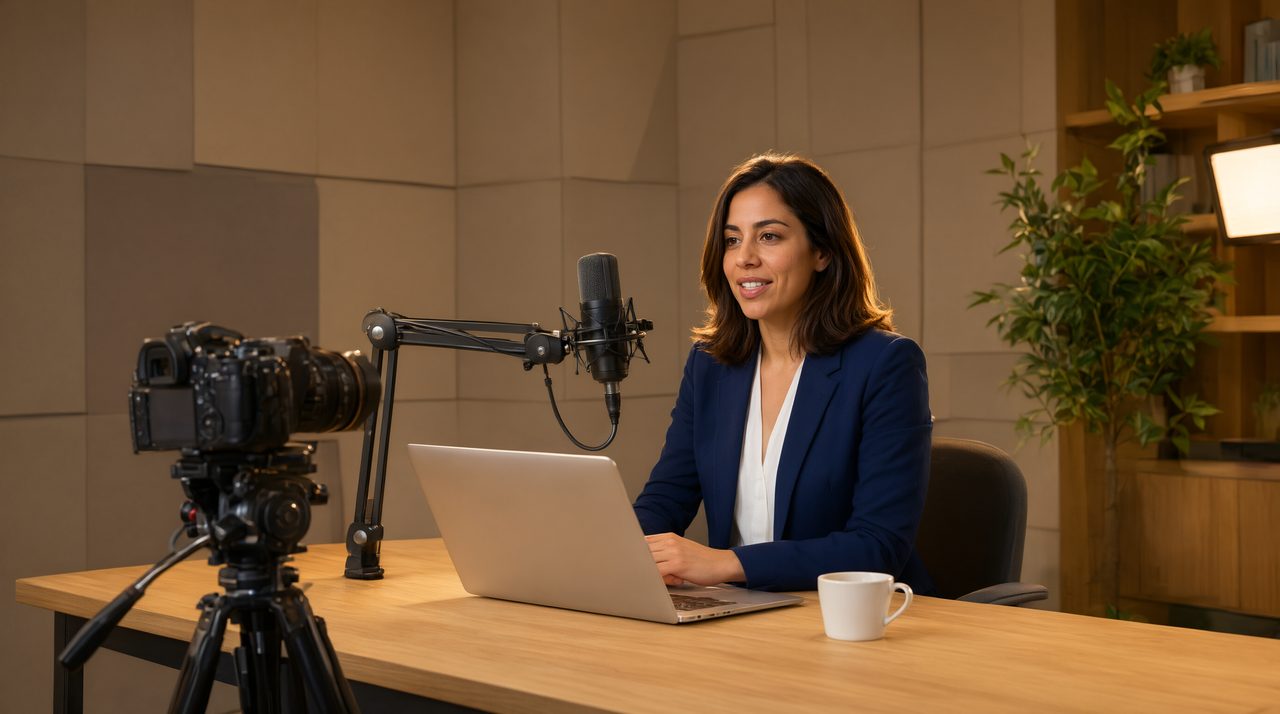
Webinars Are the Hardest Teleprompter Read in Video
A studio shoot gives you a camera, a director, and a prompter mounted six feet from the talent. A webinar gives you a laptop, a chat window screaming for attention, and a script parked somewhere off to the side. One glance down at your notes and the whole audience watches your eyes drop. Webinars punish rambling and reward tight delivery, which is exactly why a teleprompter earns its place on the desk of a serious presenter. The difference between a host who reads and one who presents comes down to three things: where the script sits relative to the lens, how it is formatted for live delivery, and who controls the scroll.
Put the Script Beside the Lens, Not Off to the Side
The classic webinar mistake is parking the script on a second monitor two feet left of the camera. Every time you read a line, your eyes travel, and at webcam distance the audience sees it clearly. The fix is simple geometry: the teleprompter display must sit as close to the lens as your desk allows.
- Place the prompter screen directly beneath the lens at eye level. The smaller the gap between lens and text, the smaller the eye movement.
- Reserve the prompter screen for your spoken script only. Run slides and the chat window on separate displays. One screen, one job.
- Lock your screen with wake-lock so it never sleeps mid-sentence. A dead display during a live segment is a broadcast-level embarrassment you can prevent in ten seconds.
- Rehearse from the same chair and distance you will present from. Moving a few inches closer or farther changes which text size reads comfortably.
Prompter Share runs in the cloud, so the text mirrors to the screen of your choice while your phone rides in your pocket as the remote.
Format the Script for a Speaking Voice
A webinar script is not a document, it is a performance instrument. The moment your sentences look like a whitepaper, you will deliver them like one.
- Write in short spoken chunks: two sentences per paragraph, contractions everywhere, fragments where you would naturally pause. If a line would not sound natural at dinner, it will not sound natural on a webinar.
- Mark every slide transition and demo beat in the script itself, in the margin: [ADVANCE SLIDE], [DEMO STARTS]. The script tells you what happens next, so you never have to think about it live.
- Build in explicit pauses after key stats and claims: [PAUSE, LET THAT LAND]. Prompted readers who skip pauses sound nervous even when they are not.
- Write your Q and A bridge lines word for word. Acknowledging questions, parking one for later, and moving on are the exact moments presenters freeze, so script them.
- Time each segment in the margin. If the opening runs four minutes and the demo runs twelve, you can see at a glance whether you are drifting before the Q and A pays for it.
The Presenter Controls the Scroll, Never the Other Way Around
This is the rule studio directors drill into talent on day one: the presenter sets the pace and the text follows. A fixed auto-scroll forces you to chase words, and chased words always sound chased. On a webinar, where you will slow down for the chat or speed up to rescue a segment, rigid scroll is even worse. Run a slow baseline around 125 to 150 words per minute and keep manual control close. Pause the scroll when the chat lights up, nudge forward when you ad-lib a bridge, and re-cue the exact line when you return from a demo. A phone remote is ideal because your hands never leave the desk.
Build one more discipline: read one line ahead of your voice. Your eyes scan the idea coming next while your mouth finishes the current sentence. That tiny eye-lead is the difference between reading words and presenting ideas.
Delivery: What the Camera Sees Matters More Than the Words
On a webinar, the audience gets your face and your voice, nothing else. Small habits carry outsized weight.
- Anchor your eyes on the lens, not the chat. Finish a thought, check comments on a scripted pause, then come back to the lens.
- Smile on the open and the close. You do not need to beam through a pricing slide, but warmth at the start sets the tone for everything after it.
- Vary your energy by segment. Demos get punchy, case studies get reflective, Q and A gets loose. One flat energy level across sixty minutes reads as robotic.
- Script your recovery for the unexpected. A failed demo, a lagging slide, a curveball question: have a bridge line ready and the scroll paused. The audience forgives a technical hiccup, never a panicked one.
The 20-Minute Rehearsal That Saves the Hour
Run the webinar start to finish at least once before you go live, out loud, with the prompter running and the remote in your hand. You will catch the same three problems every time: lines that read fine but speak badly, scroll pacing that fights your demo timing, and slide cues that land one beat late. Fix them, run the opening five minutes once more, and walk into the live session with the muscle memory of someone who has already done it once today.
The Bottom Line
A teleprompter on a webinar is not training wheels. It is the difference between a presenter who owns the hour and one who survives it. Put the script beside the lens, format it for a speaking voice with slide cues and pauses, keep scroll control in your hand, and rehearse once out loud. Prompter Share makes the setup painless: browser-based prompter, phone remote, zero hardware to buy.
And if your webinar program grows into a polished on-demand series or a paid course, that is where production quality starts to compound. Studios like Envy Creative build the kind of filmed content that webinars graduate into, but for the live hour itself, a clean prompter setup is the highest-leverage upgrade you can make.